Verified on release 3.0.74.2 "Accounting for Kazakhstan" (edition 3.0).
You printed a payment invoice, and the director asks: "Add our logo and remove the extra line at the bottom." Or the accountant complains that the certificate of completed work is missing a column, while the counterparty demands their own format. You click "Change layout," edit the spreadsheet document — and from that moment on, 1C prints your version. Everything you edited goes precisely into the "Print form layouts" catalog. This is the storage of your personal versions of print forms. Understanding it is especially important now: after the transition to the 2026 rules, the standard invoice layout already contains the VAT rate of 16%, but your old modified layout may get "stuck" on the old rate — and you will print an incorrect document without suspecting it.
1. Purpose
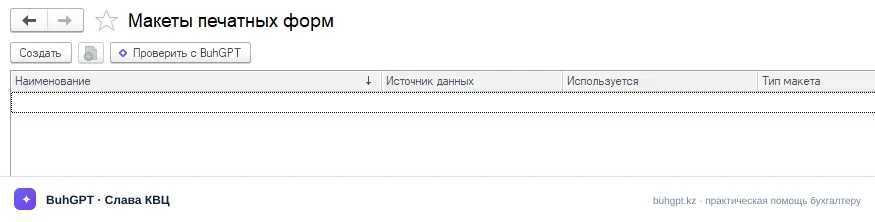
The "PrintFormLayouts" catalog stores the print forms you have modified (layouts in the form of spreadsheet documents). When you edit a standard layout via "Change layout," 1C does not touch the configuration — it saves your copy into this catalog and prints it instead of the standard one. This is a utility catalog: it does not make postings and does not generate electronic documents, it manages only the appearance of the printout.
2. Where to find it
Two ways.
Through the settings (a list of all modified layouts):Administration → Print forms, reports and processing → "Layouts" section → hyperlink Print form layouts.
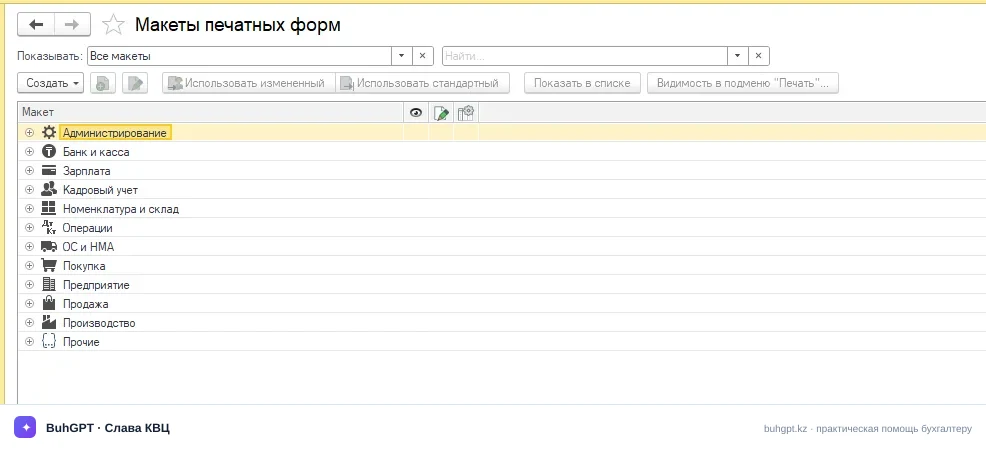
Through the print form itself (the most common way). Open any document (for example, "Sale of goods and services") → Print → choose the form → in the preview window More → Change layout. After saving, the item will appear in the catalog on its own.
3. How to fill it in (the item card)
You usually do not create the card manually — it is born on its own when you save a modified layout. But you need to know its fields.
Field | Why it matters / what happens on error |
|---|---|
Name (required) | Filled in automatically with the form's name, for example "Certificate of services rendered." You use it to find the needed layout in the list. Rename it obscurely — and later you yourself won't find which of a dozen layouts you edited. |
Owner (required) | A reference to the metadata object (document/processing) to which the form belongs. It determines during the printing of which document your layout is substituted. It is set by the system upon creation — it must not be changed manually, otherwise the layout will not "attach" and the standard one will be printed. |
Layout name (required) | Internal name (for example, |
In use (checkbox — key) | Enabled — YOUR layout is printed; unchecked — the standard one is printed. Forgot to uncheck it after a failed edit — you'll be printing a broken form. This is the first thing to check when there are problems. |
Layout body (spreadsheet document) | The layout itself: logo, fonts, columns, parameters such as |
Author / Change date | Utility fields. They help understand who edited the form and when (visible in the list columns). |
Comment | Free text: why it was edited. Not required, but saves nerves a year later. |
Editing procedure step by step:
Open the document →
Print→ the needed form → preview.More→Change layout— the spreadsheet document editor will open.Make edits: drag in the logo (
Table→Pictures→ add), change text, font, add/remove rows. Do not delete parameters in angle brackets<...>and named areas — these are data substitutions.Click
Save and close. A prompt will appear — to keep the modified layout. Confirm: the "In use" checkbox will be set automatically.Click
Printagain — you'll see your version.
4. A worked example
Task. You are issuing an invoice for payment for services: base 1,000,000 ₸, VAT 16% = 160,000 ₸, total 1,160,000 ₸. You need to add the company logo and the signature "Sincerely, your supplier."
What you do:
Sales→Invoices to customers→ open the invoice →Print→Payment invoice.More→Change layout.In the top area you insert a picture with the logo, in the bottom you add a line of text. You don't touch the rows with amounts — they contain the parameters
<Amount>,<VAT>,<Total>.Save and close→ agree to save.
Result. An item appears in the "Print form layouts" catalog:
Name: Payment invoice;
Owner: the invoice printing processing;
In use: ✔.
On the next printing, the invoice comes out with the logo, and the amounts are substituted from the document: VAT 16% = 160,000 ₸, total 1,160,000 ₸.
Postings? There are none — and this is fundamental. The catalog manages only the appearance of the printout. The invoice itself (the sales document), when posted, produces standard entries, for example:
Dt | Ct | Amount | Meaning |
|---|---|---|---|
1210 | 6010 | 1,000,000 ₸ | revenue from sales |
1210 | 3130 | 160,000 ₸ | VAT payable (16%) |
7010 | 1330 | (cost) | cost of goods written off |
These postings are created by the sales document, not the layout. The layout merely nicely printed the same amount.
5. "Operation types" — types of layouts
The catalog has no separate "Operation type" attribute, but by the way they originate, layouts come in the following kinds:
Modified standard layout — you took a standard form and edited it. The most common case.
External layout — a spreadsheet document loaded from an
.mxlfile (theLoad layout from filebutton in the card). Convenient for replicating between databases.Disabled layout — the item exists, but the "In use" checkbox is unchecked: it is kept "just in case," and the standard one is printed.
6. What is generated on saving
So there are no illusions — here is the full list of consequences:
There are no postings. The accounting register is not affected.
There are no movements in the tax/settlement registers. This has no effect on VAT, IIT, mandatory pension contributions, social contributions, or social tax.
The ESF and SNT are not generated and do not change. The electronic invoice (ESF) goes to the ESF IS in the approved XML format — your layout edits have no effect on it at all. The logo will not be substituted into the ESF.
What actually happens: an item is written to the catalog with the binary data of your spreadsheet document and the "In use" flag. Then all database users, when printing this form, get your version.
7. Print forms
The catalog itself has no print form — it produces them for other objects. Through it you configure the appearance of standard forms, among which the most frequently edited are:
Payment invoice to a customer;
Certificate of completed work (services rendered);
Delivery note for the release of inventory to a third party;
Goods delivery note;
Power of attorney;
Invoice (paper) — but remember: the electronic ESF is not managed by the form.
8. Common mistakes
"Failed to generate the print form" (or a blank sheet instead of the document). The cause — a parameter or named area was deleted/renamed in the layout. Solution: open the layout card, uncheck the "In use" checkbox (printing will revert to standard), check yourself, then fix the parameters and enable it again.
After the update, the invoice prints VAT at the old rate instead of 16%. The most dangerous mistake of 2026. The standard layout after the release already knows about 16%, but your modified layout is frozen on the old markup and old rate. Solution: Administration → Print forms, reports and processing → Print form layouts, find the form, uncheck "In use" (to print the current standard one), or More → Compare with current layout and transfer the edits into the new one.
"Changing the layout is not possible" when trying to edit. Usually the user does not have administrator rights / print form settings rights. Solution: work under a user with full rights or a profile where "Changing print forms" is enabled.
Added a logo, but it's not in the ESF. This is not an error — the ESF is generated in the ESF IS format and is not styled by the layout. The logo is visible only in the paper printout.
Edited the form "for yourself," but it changed for everyone. The layout is shared for the database. Solution: if you need an appearance for only one organization — use not a shared layout, but an external print form with a condition by organization.
9. Related documents
Based on what it appears: the item is created from the print mode of any document (
Sale of goods and services,Payment invoice,Certificate,Delivery note,Power of attorney, etc.) via the commandMore→Change layout.What uses these layouts: all the listed documents, when printing, check whether there is an enabled item for their form in this catalog, and print it instead of the standard one.
Adjacent mechanisms: "Additional reports and processing" (external print forms), "Print settings" in the section
Administration→Print forms, reports and processing.
10. FAQ
Where are the modified print forms physically stored? In the "PrintFormLayouts" catalog, inside the information database itself (as binary data). The edits do not go into the configuration, and removal from support is not required.
How do I restore the standard print form? Open Administration → Print forms, reports and processing → Print form layouts, find the needed one and uncheck the "In use" checkbox. Or delete the item — the standard layout will return.
Why, after the update to 2026, does the invoice print at last year's rate even though the VAT rate is now 16%? Because your old modified layout is being printed, not the updated standard one. Uncheck "In use" or transfer the edits into the new version of the layout via "Compare with current layout."
Can I add the organization's logo and stamp (seal)? Yes. In the layout editor, Table → add a picture. The logo will not appear in the ESF — only in the paper form.
Will my layout survive a configuration update? The catalog item itself will be preserved. But if the standard layout changed in the new release (new fields, rates), your copy will remain old. After major updates, layouts need to be checked — especially forms with amounts and VAT.