
In release 3.0.74.x of 1C:Accounting for Kazakhstan, accountants enter counterparty and contract details, information from source documents, and data on goods, services, amounts, currencies, payments and opening balances. Tax accounting is based on financial accounting data. Accounting documentation includes accounting records, source documents, tax invoices, tax registers and forms (Art. 202 of the Tax Code of the Republic of Kazakhstan).
What to enter in 1C
The information required depends on the transaction. 1C has no single document or directory where accountants enter all information. First, identify what happened: a new counterparty was added, goods were received, an amount became payable to a supplier, a payment was made, or opening balances need to be transferred.
When adding a new counterparty, use the Business Identification Number (BIN) as the organisation’s primary identifier. To open the record, go to “Directories” → “Purchases and Sales” → “Counterparties”. You can copy the details retrieved using the BIN into the record, then check the name and other information against the counterparty’s documents.
If the search returns no results or the information differs from the documents, use verified information to enter the tax regime and other details. Verify the regime through the Tax Regime Verification Service (State Revenue Committee) and check taxpayer details on the State Revenue Committee Portal.
To record a receipt, you usually need the following:
- the supplier and contract;
- the date and number of the source document;
- the name of the goods, work or services;
- the quantity and value;
- the transaction currency;
- the information needed to account for settlements with the supplier.
Enter this information from the documents that support the transaction. Accounting documentation is used to identify taxable items and calculate tax liabilities (Art. 202 of the Tax Code of the Republic of Kazakhstan). Before posting, check the required fields, verify the entered data against the source document and confirm that the entry reflects the transaction. Choosing the wrong counterparty, contract, currency or transaction type can distort settlement balances and accounting reports.
How to add a new counterparty
Go to “Directories” → “Purchases and Sales” → “Counterparties”, search by name or BIN, then click “Create”. In the record, enter the counterparty type, full and short names, BIN, registered address and the information needed for settlements. Check any automatically retrieved details against the counterparty’s documents.
- Search by BIN to see whether the counterparty is already in the directory.
- Create the record and enter the identification details.
- Verify the name, BIN and tax information.
- Create the contract and enter the bank details used for transactions.
- Save the record after verifying the information.
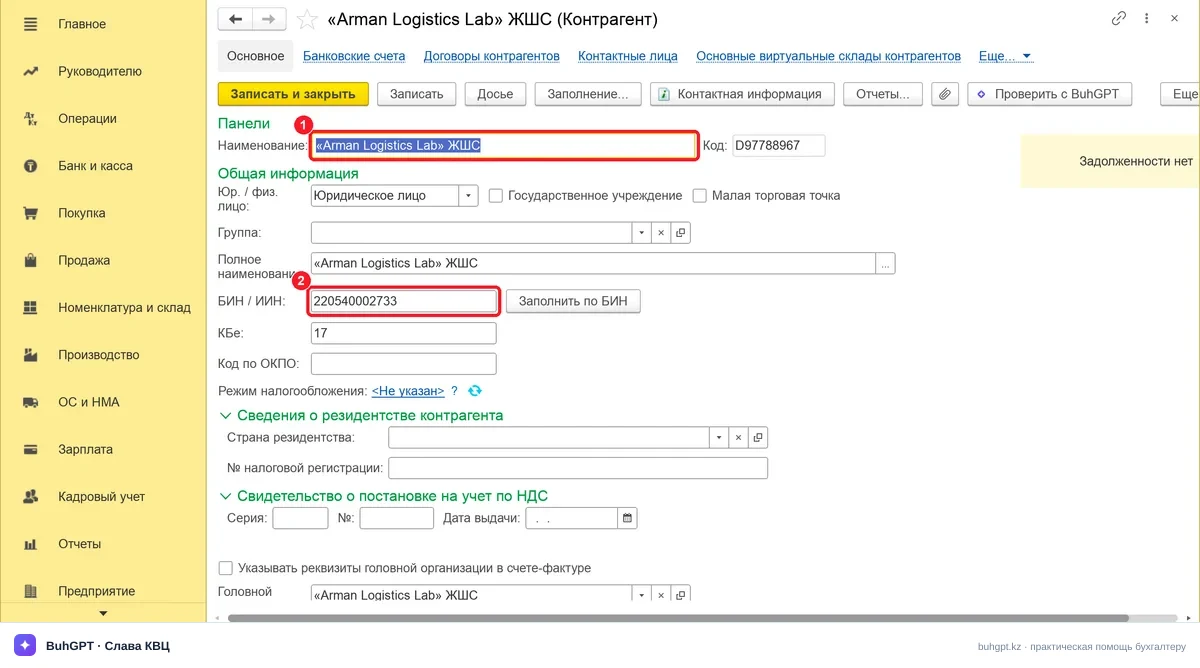
Confirm that the counterparty has no existing record before creating one. Duplicate records split outstanding balances and transaction totals across multiple directory entries. If you need more information, request supporting documents from the counterparty, verify the tax regime through the Tax Regime Verification Service (State Revenue Committee) and check registration and tax details on the State Revenue Committee Portal.
How to enter opening balances for suppliers
Enter opening balances when starting to keep accounts in a new database or migrating data from another system. In release 3.0.74.x, go to “Main” → “Opening Balance Entry Assistant”, set the entry date and select the supplier settlements section. Enter balances for each supplier and contract using the accounting dimensions configured in the database.
For opening inventory balances, enter the item, warehouse, quantity and value. If you are also transferring accounts payable, the amounts by supplier and contract must match the documents and the data from the previous system. Before entering balances, prepare trial balances, breakdowns of outstanding amounts and a list of unsettled documents.
- Check supplier records, contracts and inventory items.
- Set a single migration date in the “Opening Balance Entry Assistant”.
- Check quantities, values and outstanding balances against the data being migrated.
- Save and post the opening balance entry document.
- Generate a trial balance and compare the totals with the source data.
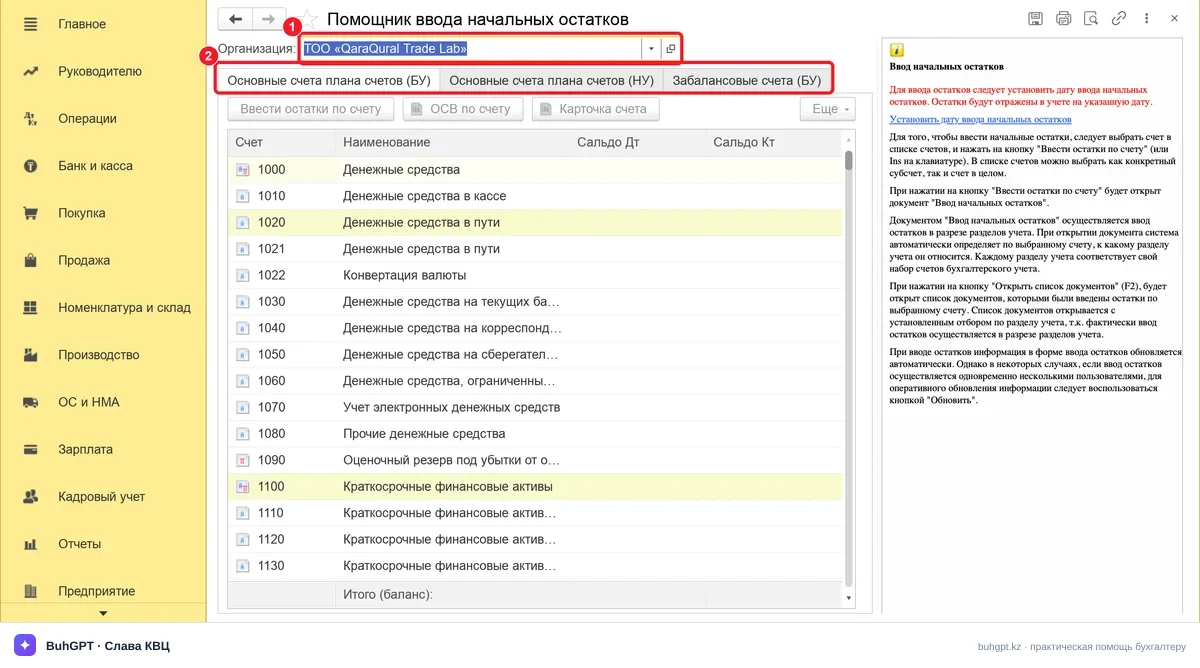
Posting the document confirms that the operation was recorded in the database. Use the report to verify the migration by checking the breakdown by supplier, contract, currency and settlement document.
How to record imports and payments in roubles
When buying goods from a Russian supplier, record the receipt and payment in separate linked documents. To create the receipt, go to “Purchases” → “Receipt of Inventory and Services”. Enter the date and number of the source document, along with the supplier, contract, goods, value and currency. These documents support tax accounting entries (Art. 219 of the Tax Code of the Republic of Kazakhstan).
- Go to “Purchases” → “Receipt of Inventory and Services” and create a receipt document.
- Enter the supplier, contract, warehouse, goods or services, and amount. Select roubles as the settlement currency.
- For a bank payment, go to “Bank and Cash” → “Payment Orders (Outgoing)”, create a payment order and use it to record the debit from the bank account.
- In the payment documents, select the same supplier, contract and settlement currency as in the receipt.
- Post the documents and generate a supplier settlements report.
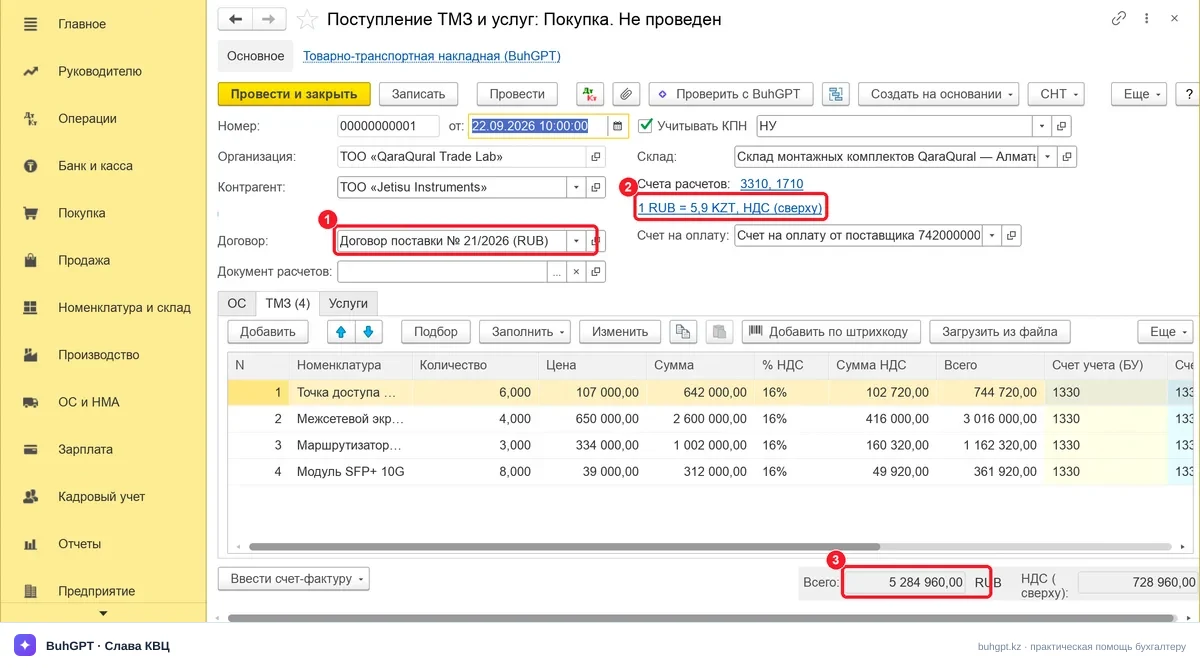
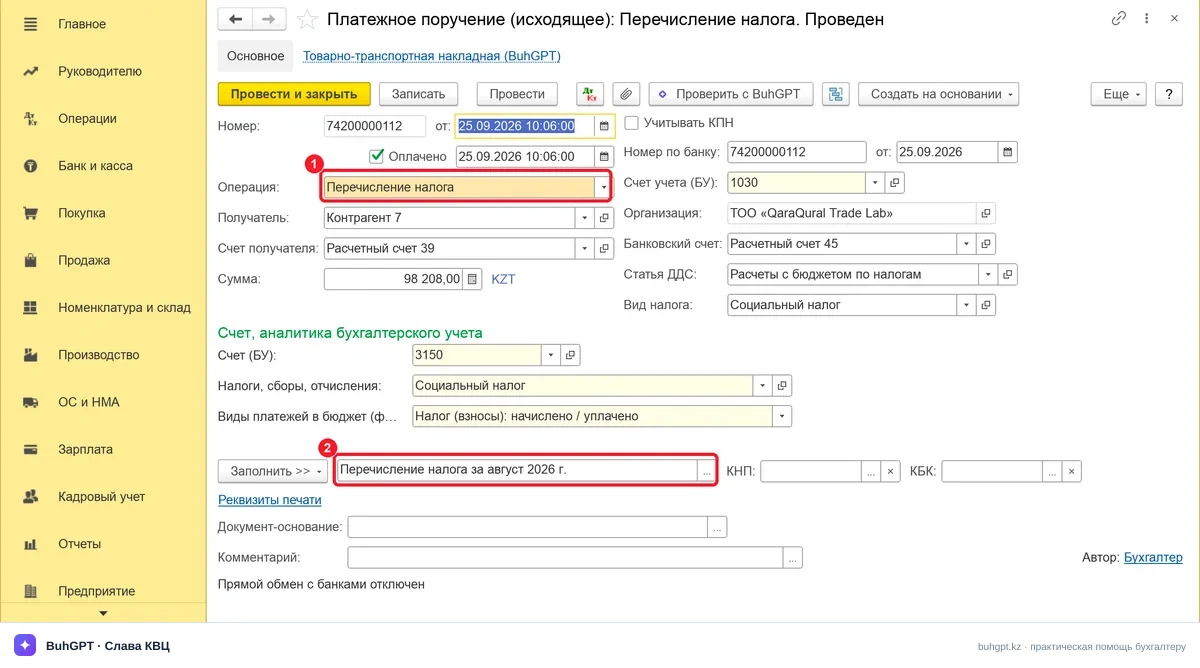
If the source document lists goods and services separately, enter them on the corresponding tabs of the receipt document. If the balance remains outstanding, compare the counterparty record, contract, currency, settlement document and balance offset settings in the receipt and the bank account debit.
When to use an issued tax invoice
In release 3.0.74.x of 1C:Accounting for Kazakhstan, use the “Tax Invoice (Issued)” document to register a tax invoice issued to a customer. Go to “Sales” → “Issued Tax Invoices” or create the document from a posted sales transaction. Tax invoices form part of the accounting documentation (Art. 202 of the Tax Code of the Republic of Kazakhstan).
To work with electronic tax invoices outside the accounting database, use the Electronic Invoicing Information System (IS ESF). Individual entrepreneurs who are exempt by law from keeping accounting records and preparing financial statements may use IS ESF to prepare source accounting documents with a digital signature (Art. 219 of the Tax Code of the Republic of Kazakhstan).
What to check before posting
Accountants can use this short checklist:
- the document type matches the transaction;
- the correct counterparty is selected and its record is unique;
- the contract and settlement settings match the supporting documentation;
- the date and number match the source document;
- the amount, quantity and value have been entered accurately;
- the document currency and settlement currency are correct;
- tax information is based on verified data;
- a report has been generated after posting to verify the entries.
In release 3.0.74.x, check access rights for sections and documents under “Administration” → “User and Access Rights Settings”. Check the database features under “Main” → “Settings” → “Functionality”. After changing the settings, reopen the relevant section of the application.
Frequently asked questions
Do I always have to enter a new counterparty’s tax regime manually? — No. You can copy the details retrieved using the BIN into the record, then check them against the documents and the results from the Tax Regime Verification Service (State Revenue Committee).
Can I select a tax regime if the search returned no results? — Use verified information to select the regime. Check it through the Tax Regime Verification Service (State Revenue Committee) or request supporting documents from the counterparty.
How do I check opening balances after entering them? — Go to “Reports” → “Trial Balance by Account” and compare the suppliers, contracts, settlement documents, quantities, values and outstanding balances with the source data used for the migration.
How do I record a payment to a Russian supplier in roubles? — Go to “Bank and Cash” → “Payment Orders (Outgoing)”, create a payment order in roubles and use it to record the debit from the bank account. Select the relevant supplier record, contract and settlement document in the documents.
Why do the receipt and payment leave a balance outstanding? — Check that the counterparty, contract, currency, settlement document and balance offset settings match in both documents. Also check for duplicate supplier records.
Sources
- Article 202 of the Tax Code of the Republic of Kazakhstan — Tax accounting and accounting documentation
- Article 219 of the Tax Code of the Republic of Kazakhstan — Source accounting documents
- State Revenue Committee Portal
- Tax Regime Verification Service (State Revenue Committee)
- Electronic Invoicing Information System (IS ESF)