Verified on release 3.0.74.2 of “Accounting for Kazakhstan” (version 3.0).
It is the end of the month. You have completed payroll for a workshop with hazardous working conditions, transferred part of the mandatory occupational pension contributions (MOPC) to the UAPF, while the remainder is still outstanding. The head office accounting department asks: “How much do we owe in MOPC as of the 1st, separately for each employee?” Reviewing the trial balance for the account is time-consuming and inconvenient because everything is lumped together. Open this report, set the period, and a second later you will see exactly what you need: accrued, paid, and outstanding amounts. Below is how to get the most out of it.
1. Purpose
2. Where to Find It
It can be opened in two ways.
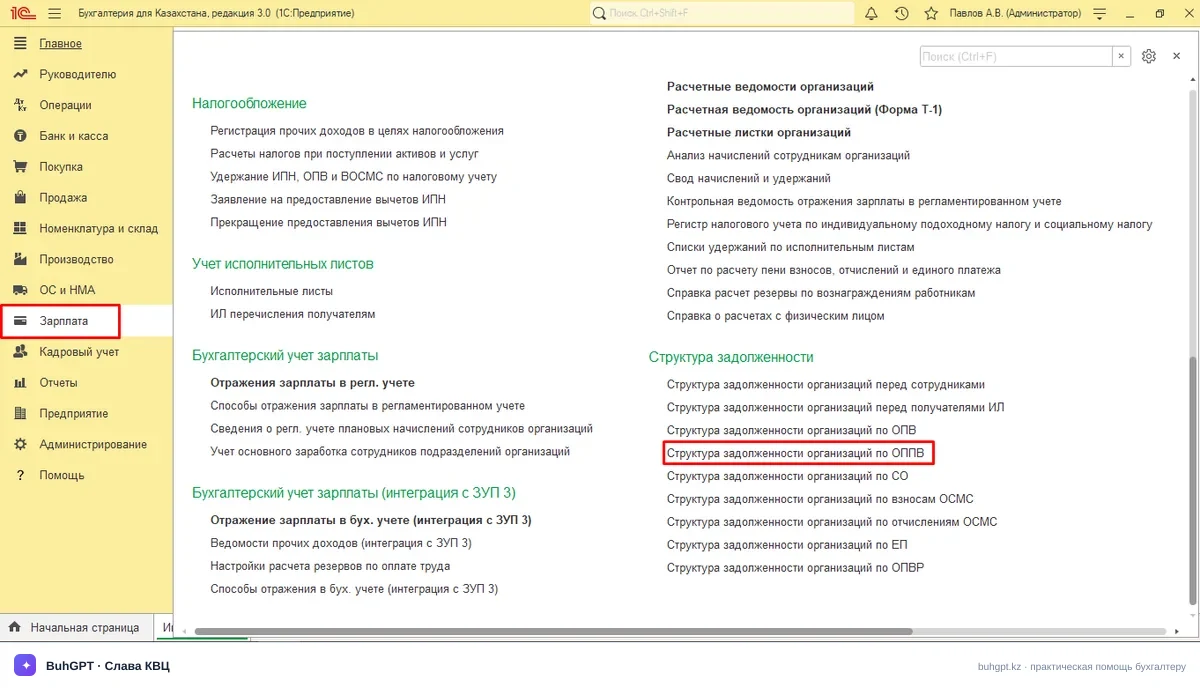
Via the menu: “Payroll” section → “Debt Structure” group → “Structure of Organizations’ Debt for MOPC”.
3. How to Complete (Configure) It
This is a report, not a document: it does not post anything and only compiles data that has already been entered. However, what you see depends directly on the settings.
Field / Attribute | Required | Purpose and Consequences of an Error |
|---|---|---|
Period (from… to…) | Yes | Sets the interval for which accruals and payments are included. If it is too narrow, you will not see older debt, and the opening balance will distort the picture. Set it from the beginning of the year (or the date of the last reconciliation) through the required date. |
Organization | Yes (if there are several in the database) | Limits the selection to one legal entity. If there are several organizations and the field is blank, the report will either combine everything or return no data. Select the organization explicitly. |
Employee / Individual (filter) | No | Allows you to view the debt for one person. If blank, the report includes all employees with MOPC transactions. |
Row Grouping | No, but important | Determines the breakdown: by organization, employee, or month. Without grouping, you will get a single total without details, which is useless for reconciliation. Set “Employee” + “Registration Period.” |
Indicators (Accrued / Paid / Balance) | No | Control the columns. All three are enabled by default; leave them that way, otherwise you will not see how the balance arose. |
Filter (“Settings” button → “Filters”) | No | Fine-tuning: only entries with a non-zero debt, only a specific department, etc. Useful for removing zero-balance entries. |
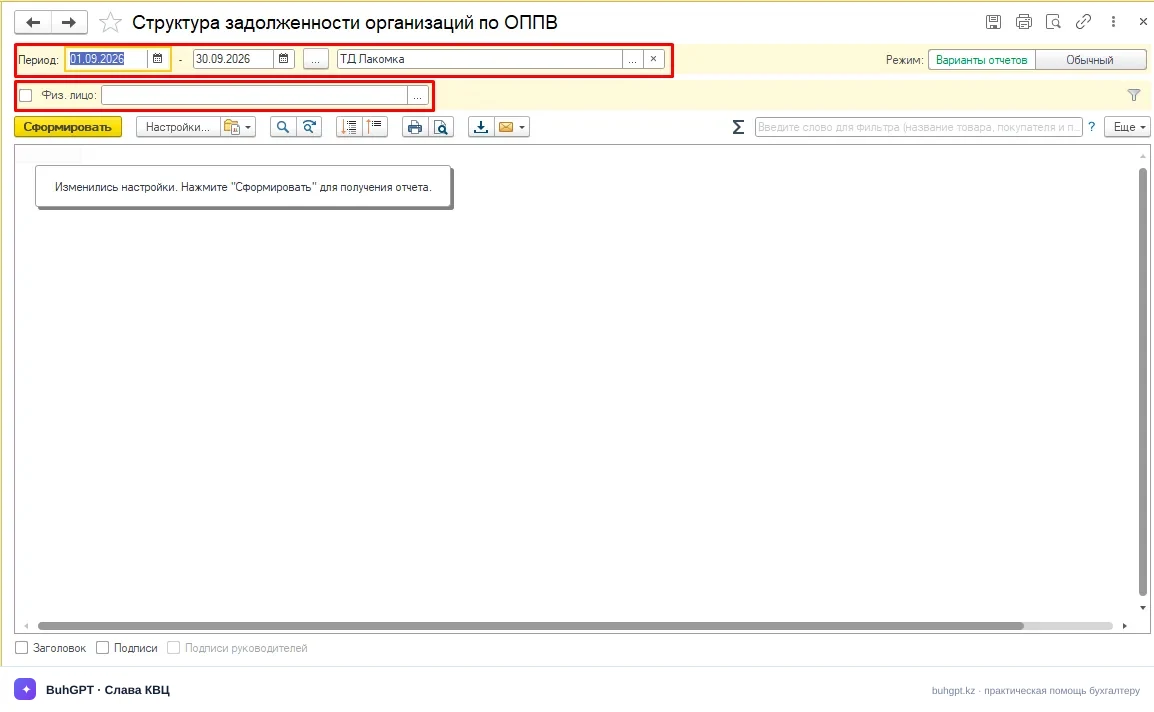
After configuring the settings, click “Generate”. The “Settings” button (or “Show Settings”) opens the advanced panel, where you can also change grouping, filters, and formatting. You can save the configured columns using “Save Settings” so that you do not have to configure them again every month.
4. Detailed Example with Figures and Journal Entries
Scenario. Rudnik LLP (Kazakhstan, 2026). The workshop employs Serikov A., who performs hazardous work included in the list qualifying for MOPC. His salary for January 2026 is 300 000 ₸. The MOPC rate is 5%, paid by the employer.
Accrual for January:
MOPC = 300 000 × 5% = 15 000 ₸
Accrual entry (at the employer’s expense):
Dr | Cr | Amount | Description |
|---|---|---|---|
7210 (8410) | 3220 | 15 000 ₸ | MOPC accrued on Serikov A.’s income |
(7210 is administrative expenses and 8410 is production overhead, depending on where the workshop payroll is allocated; 3220 is liabilities for pension contributions.)
Payment to the UAPF on 12 January: only 10 000 ₸ was transferred.
Dr | Cr | Amount | Description |
|---|---|---|---|
3220 | 1030 | 10 000 ₸ | MOPC transferred to the UAPF |
What the report will show as of 31.01.2026 for employee Serikov A.:
Employee | Accrued | Paid | Outstanding Balance |
|---|---|---|---|
Serikov A. | 15 000 ₸ | 10 000 ₸ | 5 000 ₸ |
This exact amount—5 000 ₸ of debt—is what you will transfer with the next payment, after which the balance in the report will become zero. If 16 000 ₸ had been transferred, the report would show minus 1 000 ₸—an overpayment displayed with a minus sign in the balance column.
In this way, the report matches data from the payroll module (accrual) with bank data (payment) and instantly provides the balance for each person.
5. Operation Types (Use Cases)
Formally, the report has no “operation types”; instead, it has the following use cases:
Reconciliation with the UAPF—compare your balances with the fund’s data before submitting reports.
Payment monitoring—find employees for whom contributions have been accrued but not transferred.
Breakdown by employee—details of the debt by employee name.
Breakdown by period—monthly trends in accruals/payments.
Overpayment filter—display only rows with a negative balance.
6. What Is Produced When the Report Is Generated
The report does not create journal entries, electronic invoices, accompanying waybills for goods, or register movements; it only reads data. Its data sources are:
MOPC settlement accounting registers (data from the payroll module and contribution accruals);
accounting entries for account 3220 (liabilities for pension contributions) relating to MOPC;
payment documents (bank/cash account withdrawals allocated to MOPC).
The result is an on-screen table with “Accrued / Paid / Balance” columns that can be collapsed or expanded by grouping.
7. Print Forms
The report does not have a separate form; the generated table itself serves as the print form. Standard spreadsheet document actions are available:
“Print”—send the report to a printer;
“Save As…”—export to Excel (.xlsx), PDF, or .mxl;
“Send by Email”—send it as an attachment from 1C.
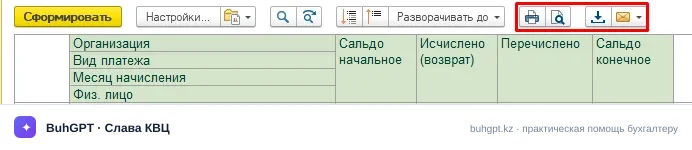
Before printing, make sure that the groupings are expanded to the required level; collapsed rows will remain collapsed on paper.
8. Common Errors
“The ‘Organization’ field is not completed” (or the report is blank when there are several legal entities). → Explicitly select the organization in the settings header and regenerate the report.
The report is blank even though contributions were accrued. → Check the period: the start of the interval may be later than the accrual dates. Extend the period from the beginning of the year. Also make sure that the monthly payroll has been posted, not merely saved.
The debt does not reconcile with the UAPF—an extra amount remains outstanding. → The bank payment was allocated to MPC rather than MOPC, or to another account/analytical dimension. Open the write-off document and check the account (3220) and contribution type. Until the payment is recognized as MOPC, the report will continue to show the debt.
An employee has MOPC even though they do not perform hazardous work. → The MOPC assessment attribute was enabled incorrectly in the accrual/employee record. Remove the assessment and repost the payroll for the month; otherwise, the report will show a non-existent liability.
The balance is negative (an overpayment), although there was no overpayment. → The payment was allocated as one amount across several months or entered twice. Find the duplicate bank write-off for the period.
9. FAQ
Does the report post or change anything in the database? No. This is an analytical report: it only reads previously entered data and displays it on the screen. It does not create any journal entries, electronic invoices, or register movements.
What is the MOPC rate in 2026? Mandatory occupational pension contributions are 5% of the employee’s income and are paid entirely by the employer. They are paid for employees engaged in hazardous work included in the approved list of occupations.
How do MOPC differ from MPC and EMPC? MPC (10%) are withheld from the employee’s income; EMPC (3,5%) and MOPC (5%) are paid by the employer at its own expense. MOPC apply only to employees engaged in hazardous work, while EMPC apply to all employees. This report relates specifically to MOPC.
Which account is used for MOPC? Liabilities for pension contributions, including MOPC, are recorded in account 3220. The accrual is posted to the debit of an expense account (7210/8410), while the payment is posted to the credit of a cash account (1030—the current account).
Why is the report blank? There are three common reasons: an incorrect period (the start date is later than the accrual dates), no organization has been selected, or the monthly payroll has not been posted. Check all three.
How can I view the debt for only one employee? Set a filter for the individual (employee) in the report settings, or retain the “Employee” grouping and find the person in the list.
The report shows a debt, but the UAPF shows zero. Which is correct? Most likely, the bank payment was not allocated to MOPC. Open the payment document and check account 3220 and the “MOPC” contribution type. After correcting and reposting the document, the balance will reconcile.
Can the report be exported to Excel? Yes. Select “Save As…” → .xlsx format (or PDF). Before exporting, expand the required groupings; otherwise, only the totals will be included in the file.
What period is best for reconciliation? From the beginning of the calendar year through the reconciliation date, so that the entire accumulated balance is visible. A one-month interval is sufficient for monitoring the current month.
What should I do if the balance is negative? A negative balance is an overpayment. Check whether the payment was allocated twice or to several months at once. An actual overpayment may be offset against the next payment.