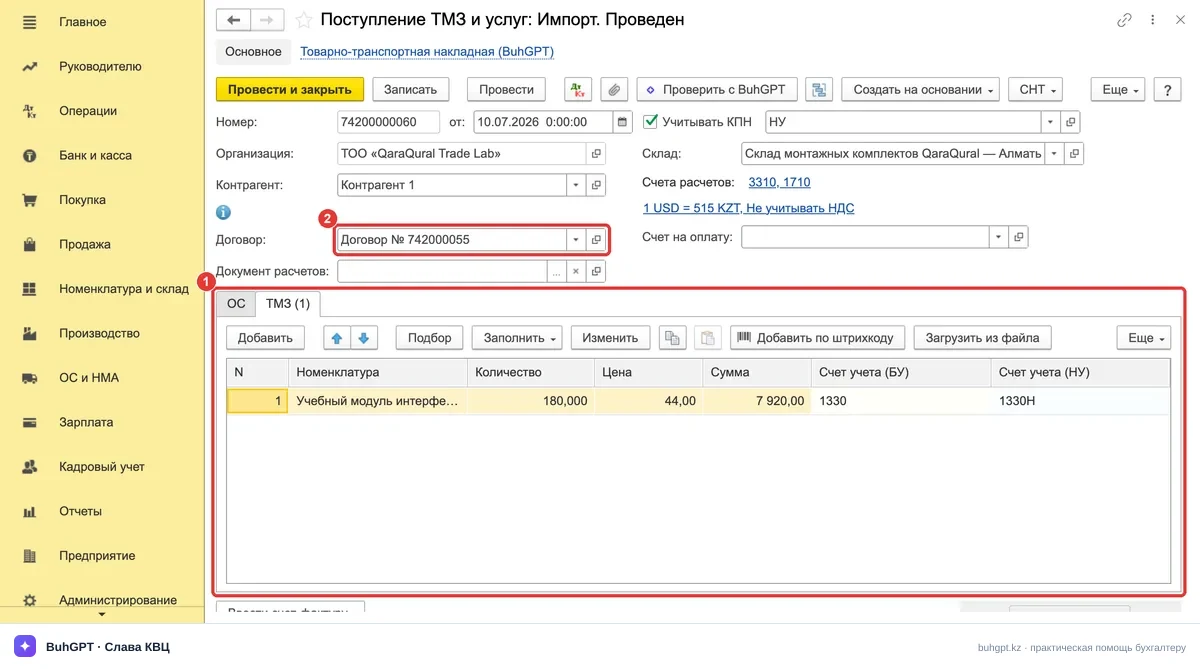
In 1C:Accounting for Kazakhstan, edition 3.0, release 3.0.75.1, enter the customs declaration number for an imported batch in the “Customs Declaration Number” field of the receipt document. The entry is stored in the separate “Customs Declaration Numbers” directory and is used to populate goods origin details in subsequent documents and in section G of the e-invoice.
Where to find customs declaration numbers in 1C:Accounting for Kazakhstan
The “Customs Declaration Numbers” directory stores the numbers of the declarations under which goods were imported into Kazakhstan. This directory stores reference data. It does not by itself record a business transaction or generate journal entries. To ensure the data carries over correctly, link the declaration number to the specific imported batch in the receipt document.
Follow these steps in release 3.0.75.1.
- Open the “Purchases” section.
- Open the receipt document for the imported goods.
- Go to the line for the relevant item.
- Open the drop-down list in the “Customs Declaration Number” field.
- Select an existing entry or create a new one in the directory.
You can also open the directory using the navigation link `e1cib/list/Справочник.НомераГТД`. Another path in this release is “All Functions” → “Directories” → “Customs Declaration Numbers”.
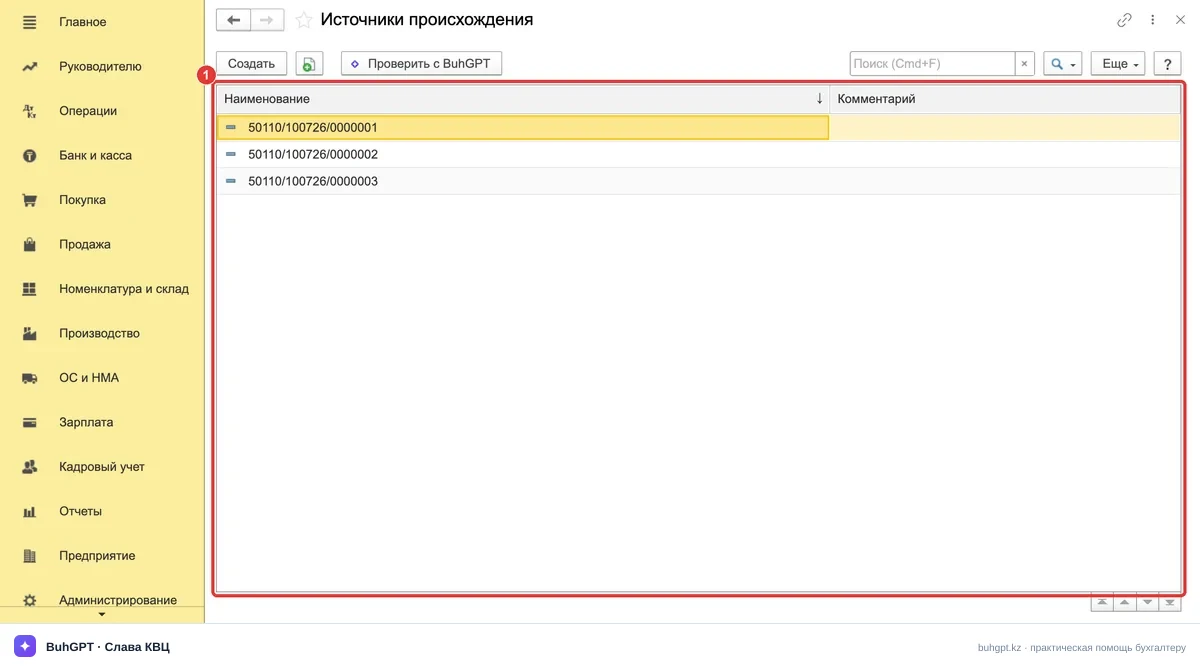
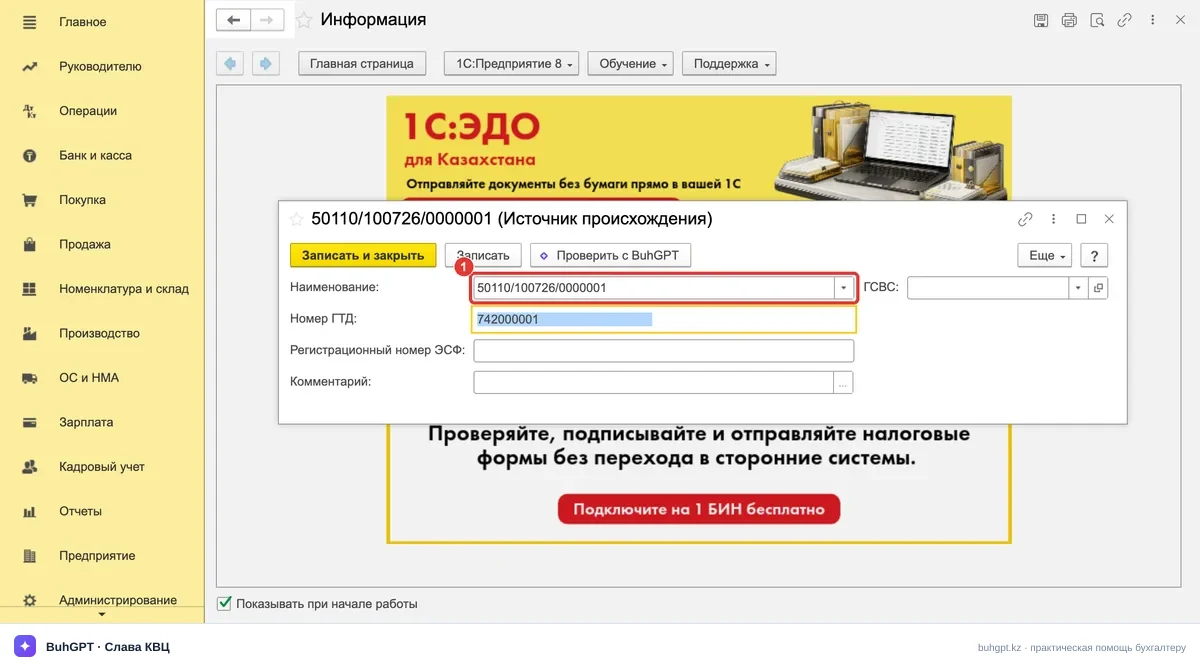
Release 3.0.75.1 changed the form and editing logic for customs declaration numbers in the “Sources of Origin” object. After updating the database, check the new entry, confirm that it is selected in the actual receipt document, and then verify the result in the generated e-invoice.
How to enter a customs declaration number for an imported batch
In the entry form, enter the number from the document for the batch you received. If the number looks slightly different, check for an existing entry before creating a new one. An extra space or a different separator can create duplicates.
After selecting the number, follow these steps.
- Make sure the line contains the imported item.
- Check the country of origin.
- Select the customs declaration number for that batch.
- Save the receipt document.
- Open the “Sources of Origin” object and verify the link.
Assign the declaration number to the batch when recording its receipt. The same item can arrive in different batches under different declarations. You can set a default country of origin in the item record.
If goods were produced in Kazakhstan, entering a customs declaration number with “Kazakhstan” as the country of origin triggers a mismatch warning. Verify the goods’ origin, then clear the number for locally produced goods or enter the actual country of origin for imported goods.
How to check the customs declaration number in the e-invoice and find errors
After saving the receipt document, generate a test e-invoice and check section G. The origin details for the imported goods should carry over correctly. You can also check the electronic document in the Electronic Invoicing Information System (EIIS).
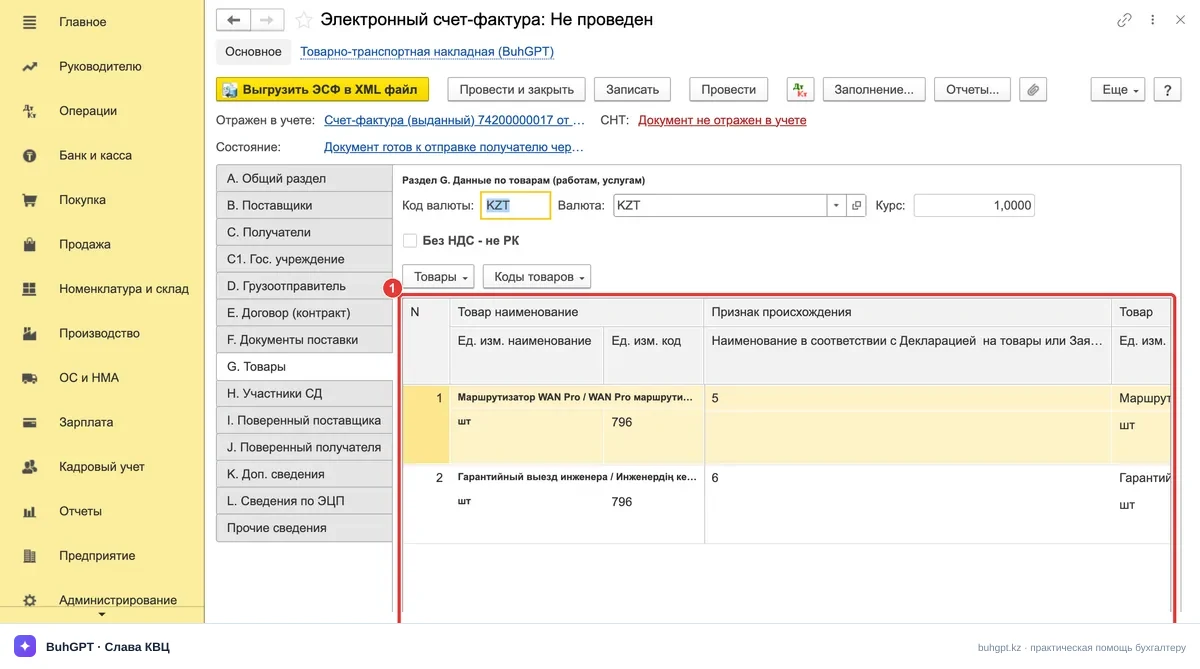
If the number is missing, check the following in order.
- whether the number is selected on the line for the correct batch
- whether the country of origin is filled in
- whether the link was saved in the “Sources of Origin” object
- whether the directory contains duplicate entries for the same number
- whether the document was posted after the fields were changed
- whether the details carried over to the regenerated e-invoice
If a sales document or e-invoice shows a blank field or a number belonging to a different batch, the batch may be linked incorrectly or the directory may contain multiple entries for the same number in different formats. To handle duplicates, use “More” → “Find and Remove Duplicates” and carefully select the primary entry before merging.
Correcting a directory entry updates the data in linked objects in the database. The change does not automatically correct an e-invoice that has already been sent. Check its status and determine what to do next directly in the Electronic Invoicing Information System (EIIS). Editing the 1C directory alone is insufficient to replace the number in a submitted document.
Frequently asked questions
Where does 1C store the customs declaration number? — In the separate “Customs Declaration Numbers” directory. The number is linked to a specific item when you record the imported batch in the receipt document.
How do I open the “Customs Declaration Numbers” directory? — In release 3.0.75.1, open “Purchases”, open the receipt document, and go to the “Customs Declaration Number” field on the item line. You can also go to “All Functions” → “Directories” → “Customs Declaration Numbers”.
Why is the customs declaration number missing from the e-invoice? — Check the country of origin, the number selected for the relevant batch, and the entry in the “Sources of Origin” object. After making the correction, regenerate the e-invoice and check section G.
Do I need to enter a customs declaration number for goods from Kazakhstan? — No. Under the 1C procedure, select “Kazakhstan” as the country of origin for locally produced goods and leave the customs declaration number field blank. Entering a number with that country selected triggers a mismatch warning.
Can I correct the number in the directory after sending the e-invoice? — The correction updates references within the database. The submitted e-invoice remains as sent and must be checked separately in the EIIS.