Create cash orders in 1C in the “Bank and Cash” section. Use the “Cash Receipt Order” document to record cash received and the “Cash Disbursement Order” document to record cash paid out. The procedure below was verified in 1C:Accounting for Kazakhstan, release 3.0.75.1. Before applying regulatory requirements in 2026, check the current wording in the Adilet Legal Information System.
Which cash order to use
Use a cash receipt order (CRO) when cash comes into the organization’s cash desk. The document supports customer payments, refunds from employees with outstanding advances, other employees or suppliers, cash withdrawals from a bank, settlements on credit and loans, receipts from an organizational unit, and other cash receipts.
Use a cash disbursement order (CDO) when paying out cash. Available transactions include supplier payments, employee cash advances, wage payments, cash deposits at a bank, cash collection, customer refunds, settlements on credit and loans, payments under writs of execution, and other cash disbursements.
The direction of the cash flow is only one factor when selecting a document. The transaction type determines which fields are available and how the transaction is recorded in the accounts, so identify the business purpose of the payment before completing the order.
How to create a cash receipt order
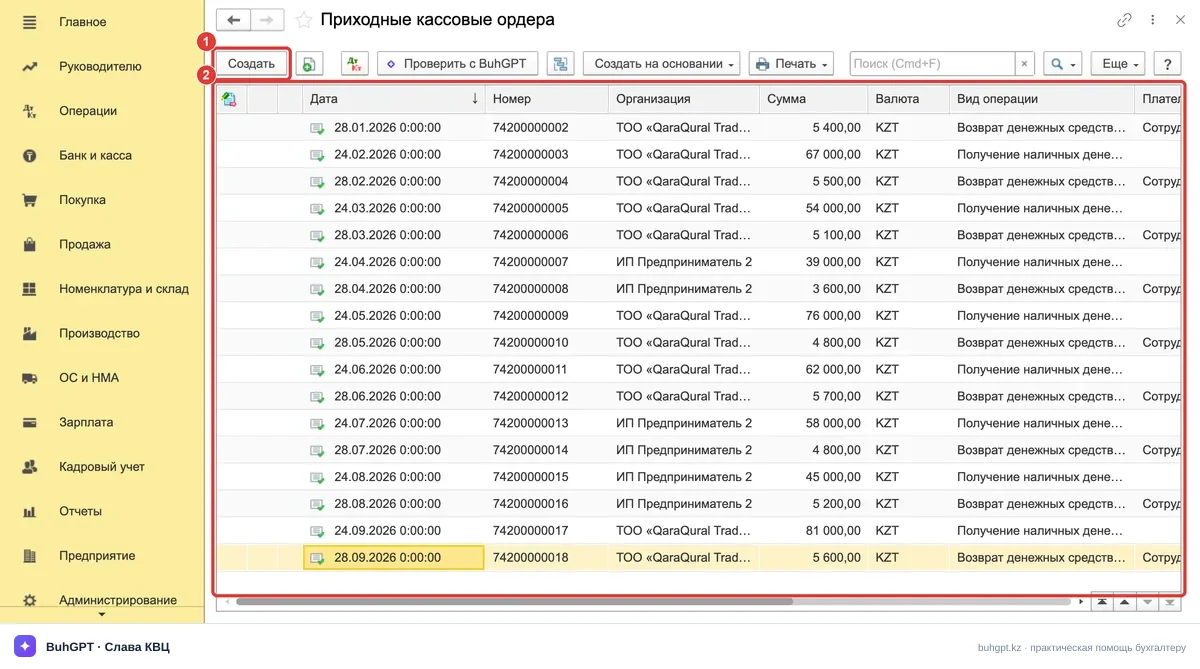
Go to “Bank and Cash” → “Cash Receipt Orders” → “Create”. In the “Cash Receipt Order” form, enter the document date, organization, and transaction type.
The remaining fields depend on the selected transaction type. When an employee returns advance funds, for example, specify the employee, amount, cash account, and settlement account. In the line items, allocate the payment by type of outstanding balance and, if needed, specify the cash flow item.
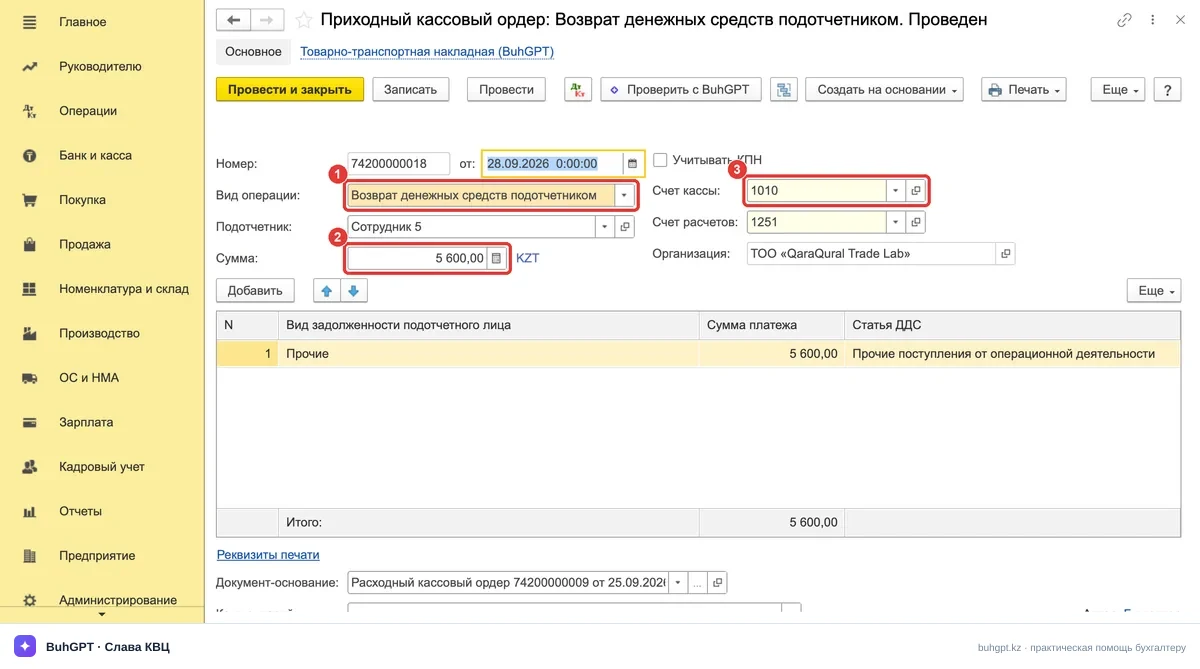
Check each of the following.
- The organization matches the cash desk receiving the money.
- The correct transaction type is selected.
- The document amount matches the sum of its line items.
- The cash account and settlement account are appropriate for the transaction.
- The correct employee or counterparty is selected.
- The source document field is filled in if a primary accounting document is available.
- The cash flow item reflects the purpose of the receipt.
After checking the details, select “Post” or “Post and Close”. Use the “Print” button to generate a printable form. The “Save” button saves the document. Posting requires a separate command.
How to create a cash disbursement order
Go to “Bank and Cash” → “Cash Disbursement Orders” → “Create”. In the document that opens, enter the date, organization, and transaction type.
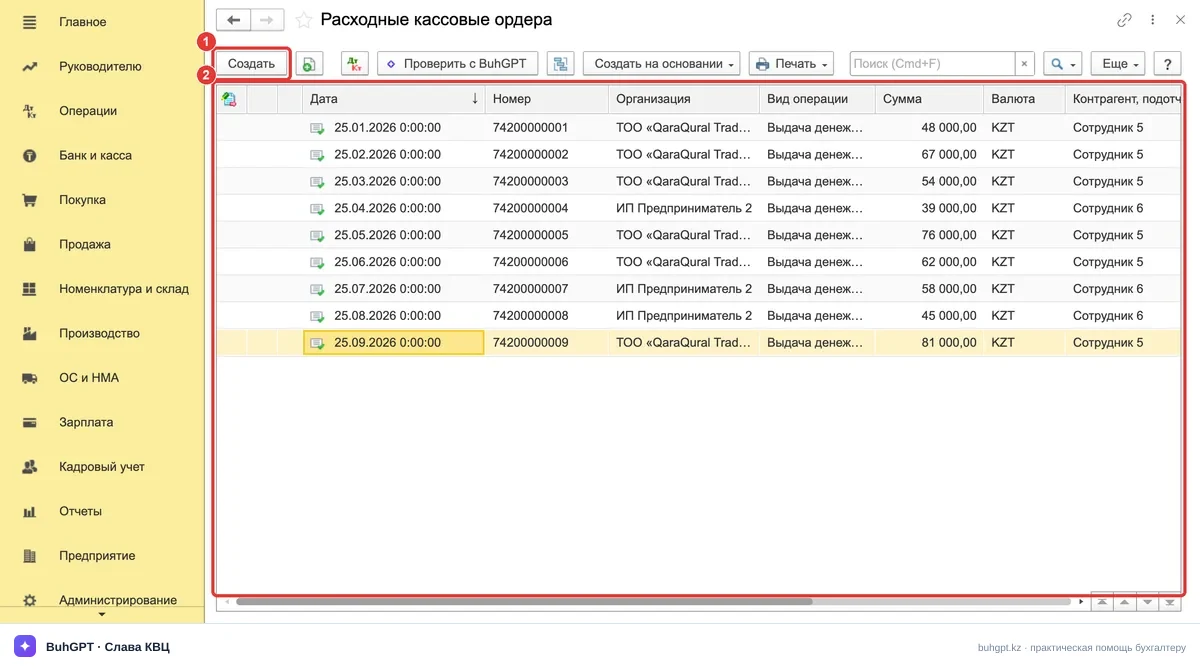
When issuing a cash advance to an employee, select “Issue Cash Advance to Employee” and enter the employee, amount, cash account, and settlement account. If the CDO is for another purpose, select the corresponding transaction type, such as a supplier payment, wage payment, cash deposit at a bank, or customer refund.
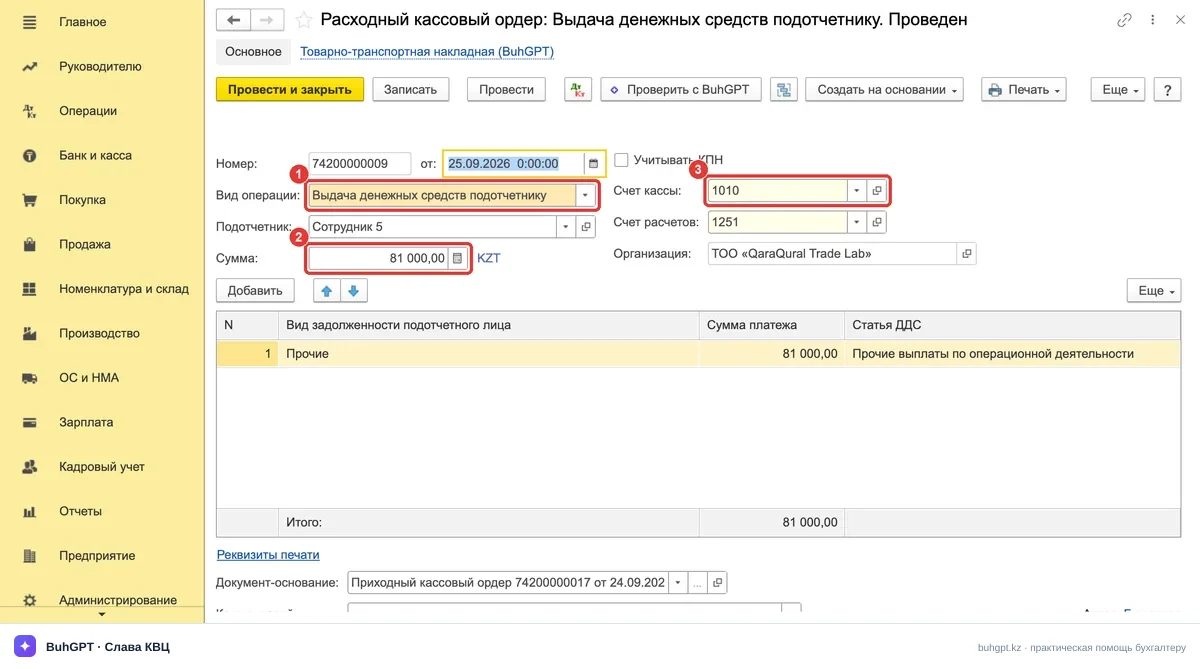
In the line items, check the type of outstanding balance, the payment amount, and the cash flow item. For transactions based on payment lists or writs of execution, compare the CDO total with the amount on the source document. Then post the document and use the “Print” command to generate the required printable form.
Use a CDO for cash disbursements because it provides dedicated transaction types, payee fields, and validation checks. Before posting, also check that the selected organization matches the cash desk and that the cash desk currency matches the currency of the account used.
What to check if posting fails
The message “The document amount does not match the total of the payment lines” means that the amount entered on the CRO differs from the total allocated across the payment lines. Compare the amount in the header with the line-item total and correct the difference.
If you see the message “The cash desk currency does not match the organization’s account currency”, check the selected cash desk, organization, and ledger account. They must all correspond to the same transaction and use the same currency.
If the application says that you must select a counterparty agreement to determine the settlement exchange rate, specify the agreement in the settlement details. Identify the basis for settlement before entering the exchange rate.
A CDO may also show a message indicating a mismatch between the counterparty’s details and those of the linked individual. In that case, check the link between the directory records and verify their individual identification numbers (IINs) or business identification numbers (BINs). If the order amount differs from the employee’s outstanding advance balance or from the amounts on the payment lists, correct the line items or the document total, then try posting again.
Frequently asked questions
Where can I find cash orders in 1C? — Go to “Bank and Cash” → “Cash Receipt Orders” for CROs or “Bank and Cash” → “Cash Disbursement Orders” for CDOs.
Which order should I use when an employee returns advance funds? — Create a cash receipt order and select the “Return of Advance Funds by Employee” transaction type.
How do I issue a cash advance to an employee? — Create a cash disbursement order with the “Issue Cash Advance to Employee” transaction type, then enter the employee, amount, and ledger accounts.
Why won’t the cash order post? — First compare the document amount with the line-item total. Then check the organization, cash desk, currency, accounts, counterparty or employee, and source document.
Is clicking “Save” enough? — This command saves the completed document. Use “Post” or “Post and Close” to generate the accounting entries.