To run the express check in “1C:Accounting for Kazakhstan,” go to Operations → Periodic Operations → Express Accounting Check. Release 3.0.75.1 revised four rules: two invoice checks, reconciliation of accounts 1421 and 3131 with the VAT registers, and a check on whether e-invoices were issued on time. Run the check twice when closing 2026: once for the full year before closing December and once for December after the year-end balance closing.
At a Glance
- Menu path: Operations → Periodic Operations → Express Accounting Check
- In 3.0.75.1, four rules account for the adjustment mechanism: issued and received invoice checks, reconciliation of 1421 and 3131, and e-invoice issuance deadlines
- After upgrading from 3.0.74.2, your results may differ. Review the messages before changing any documents
- Check all of 2026 before closing December. After closing, run the “Periodic Operations” checks for December
- The “Check for Balances in Revenue and Expense Accounts After Year-End Balance Closing” rule shows whether accounts in sections 6 and 7 were closed to 5710 and the resulting balance was transferred to 5610
The main article “Closing 2026 and Opening 2027” covers the entire year-end closing process, from the inventory count to setting the data lock date. This article focuses on the express check.
What Changed in Release 3.0.75.1
The release notes for 3.0.75.1 say that four checks were updated “to account for how the adjustment mechanism works.” The updates change how the rules match documents, journal entries and register records. The VAT calculation method stays the same.
| Rule | What It Checks |
|---|---|
| Check That Issued Invoices Were Prepared Correctly | Compares VAT amounts and amounts excluding VAT on issued invoices with the corresponding shipment documents |
| Check That Received Invoices Were Prepared Correctly | Compares VAT amounts and amounts excluding VAT on received invoices with the corresponding receipt documents |
| Reconcile Accounts 1421 and 3131 with VAT Register Data | Compares movements in accounts 1421 and 3131 with the VAT registers |
| Check Timely Issuance of E-Invoices for Shipment Documents | Checks whether shipments have corresponding invoices and e-invoices, taking the issuance deadline into account |
Details of the checks:
- The reconciliation of accounts 1421 and 3131 makes four comparisons: debit movements in 1421 against the “Recoverable VAT” register, credit movements in 1421 against “Recoverable VAT Adjustments,” credit movements in 3131 against the “VAT” register, and debit movements in 3131 against “VAT Adjustments.” The rule excludes movements where 1251 or 2151 is the offsetting account.
- The e-invoice timeliness rule specifies a deadline of “no later than 15 calendar days after the date of the transaction.” Service sales marked “Defer VAT Accrual” are excluded.
- The invoice availability reports in this release were also updated to account for the adjustment mechanism.
After upgrading from 3.0.74.2, the report may display different messages. A new message may reflect a change in how the rule matches corrected documents and transactions in adjacent periods, even when the accounting data is correct.
How to Run the Express Check
First, make sure the database has been updated to 3.0.75.1. The release number appears in the “About” window. If you have several databases, run the check separately in each one.
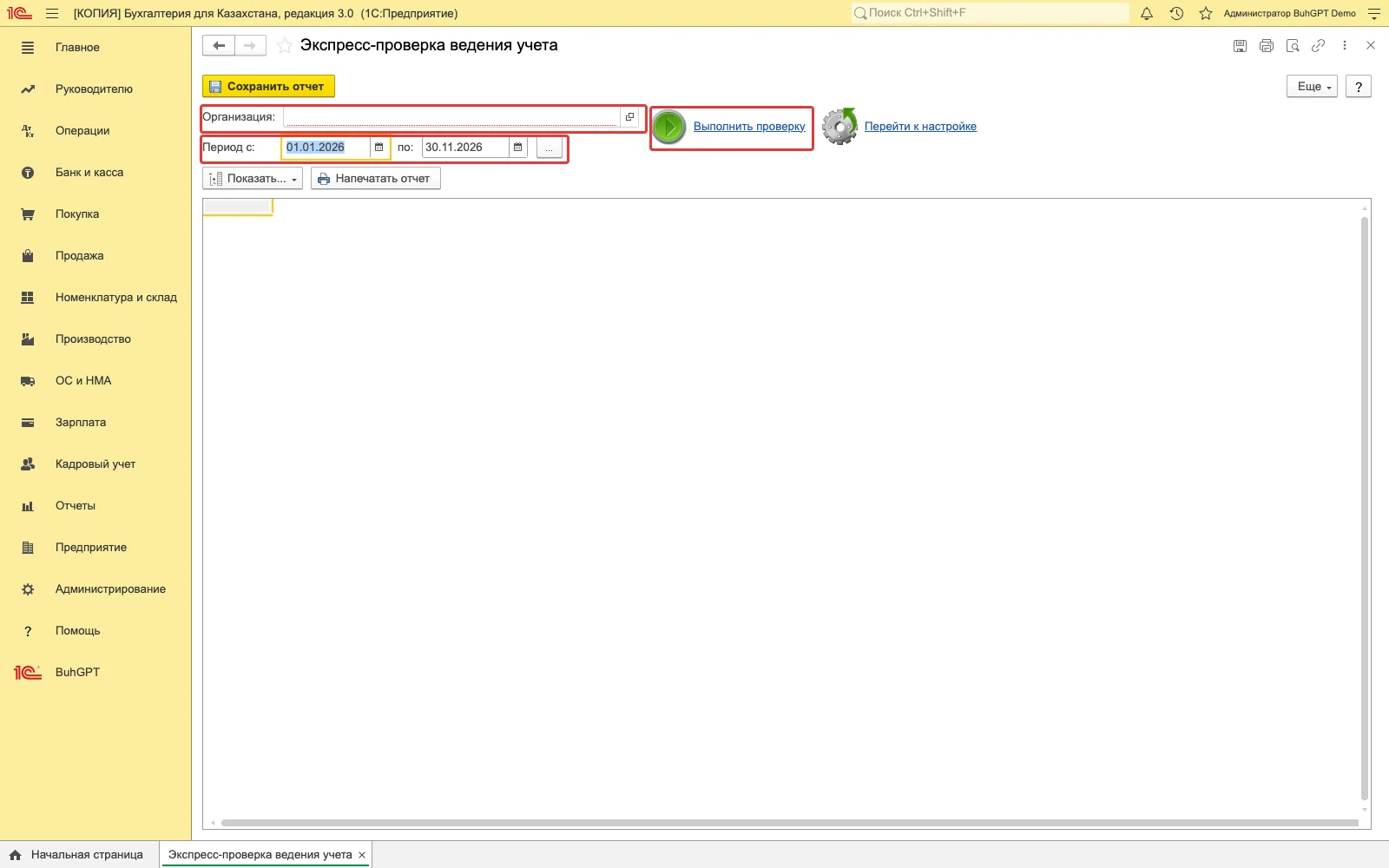
- Open Operations → Periodic Operations → Express Accounting Check.
- Select the organization in the “Organization” field.
- Enter the start and end dates or click “Select Period.”
- Click “Go to Settings” and select the checkboxes for the sections and checks you need. Use “Default Settings” to restore the original selection.
- Click “Run Check.”
- Click “Go to Report” to open the results and choose a level of detail, from “1. Check Sections” to “4. Detailed Error Reports.”
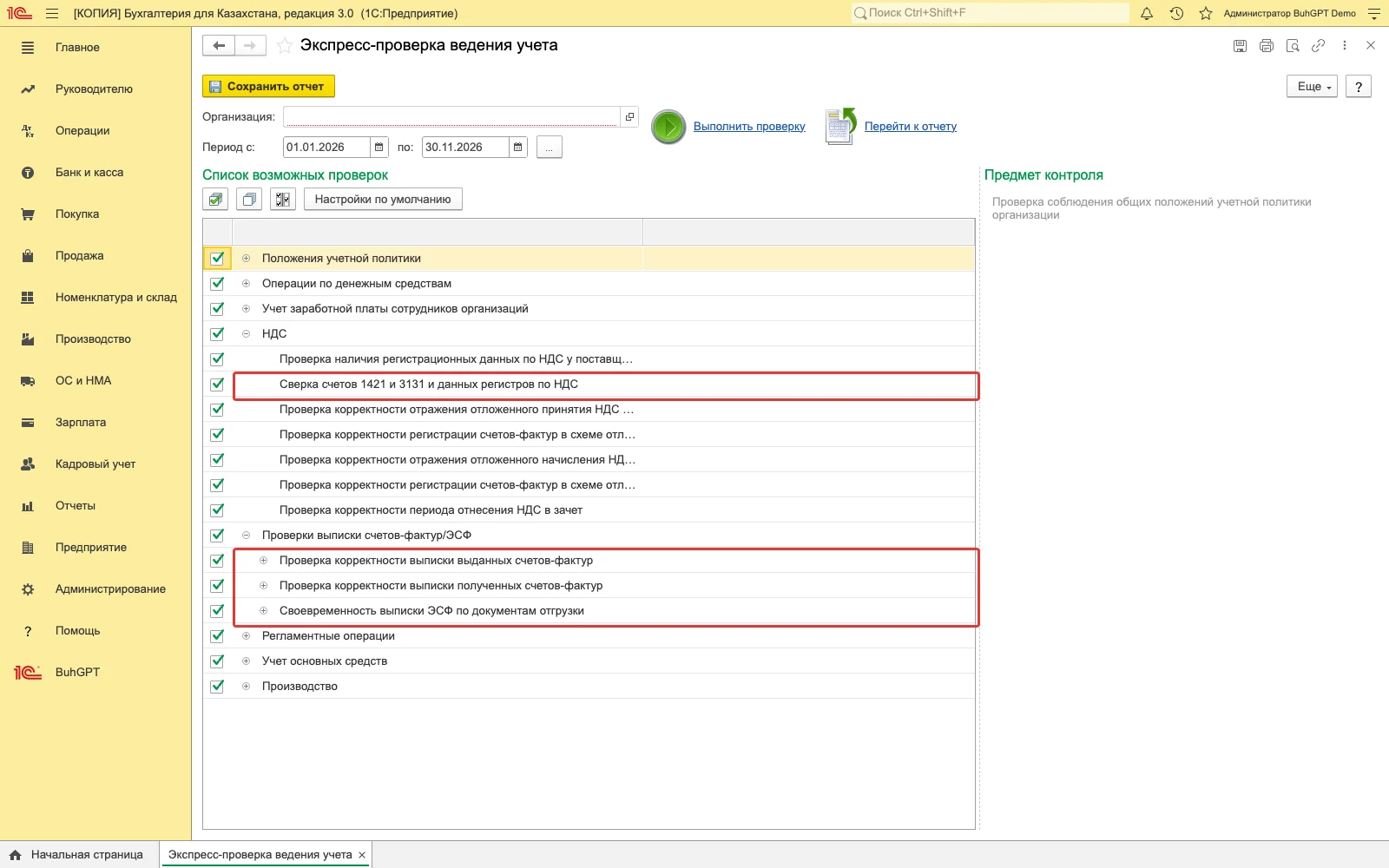
At level “3. Checks with Comments,” each check lists what it verifies, possible causes of errors and recommendations. Level 4 shows the documents and amounts for which the rule found an error.
Important: The express check only generates a report. It makes no corrections. Do not change documents just to clear a message:
- Back up the database first
- Use “Print Report” or save the initial results to a file so you can compare them with the results of a subsequent check
- Use the source document and the received e-invoice to correct the cause of the discrepancy
How to Address VAT Discrepancies
Invoices and E-Invoices
If a rule flags an invoice, open the document from the detailed report and compare it with the supplier’s document. Check whether the e-invoice is in the database, whether it is linked to the receipt, and whether it was subsequently corrected or revoked.
- Open Purchasing → Received Invoice Availability Report for the same period.
- Reconcile the report with the list of received e-invoices in the E-Invoice Information System. Review revoked e-invoices, documents without VAT and corrected e-invoices separately.
- Open Reports → Standard Reports → Tax Accounting Registers → Invoice Tax Accounting Register and check the amount of VAT claimed as an input tax credit for the period.
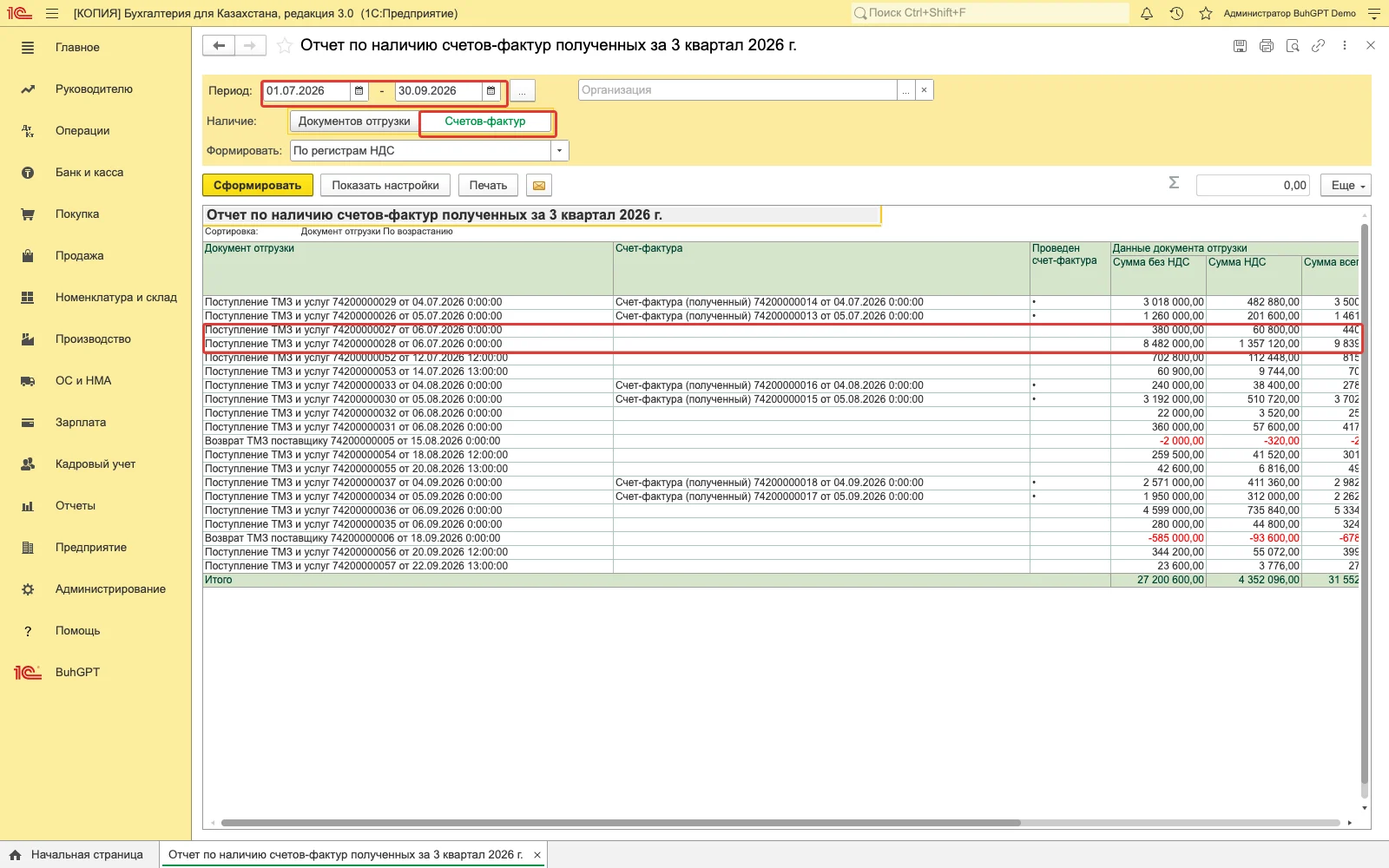
Discrepancies are often caused by timing. The journal entry and the VAT register entry may fall in different periods, or the corrected e-invoice may have been issued in the following quarter.
Accounts 1421 and 3131
If the message concerns the reconciliation of 1421 and 3131, the detailed report lists three types of documents:
- Documents such as “Transaction” that do not create both journal entries and VAT register entries
- Documents with different amounts in the journal entries and register entries, for example after a manual adjustment
- Documents with no register entries, for example because the accounting data cutoff date falls before the end of the period being checked
For each document, compare the account movements, VAT register entries, posting date and any adjustments. Correct the underlying cause in the document, its link to the e-invoice or its accounting date, without adjusting the total directly.
Annual Check Before Closing 2026
Accounting in 2026 follows the Standard Chart of Accounts under Order No. 185, which is also used in release 3.0.75.1. The new chart under Order No. 533 takes effect on 01.01.2027, so use the existing account numbers for all checks covering 2026.
Step 1. Check the Full Year Before Closing December
- Open Operations → Periodic Operations → Express Accounting Check.
- Set the period from 01.01.2026 to 31.12.2026.
- Keep all sections enabled: “Accounting Policy Provisions,” “Cash Transactions,” “Employee Payroll Accounting,” “VAT,” “Fixed Asset Accounting,” “Settlements,” and “Production.”
- Click “Run Check” and review the errors before closing December.
Step 2. Close December
Close December 2026 in Operations → Periodic Operations → Month-End Closing. Revenue and expenses are closed to account 5710 “Net Profit (Net Loss).” The “Year-End Balance Closing (Financial Accounting)” operation then transfers the result to account 5610 “Retained Earnings (Uncovered Loss) for the Reporting Year.” The sequence of operations, corporate income tax and closing a year with a loss are covered in the main article on year-end closing.
Step 3. Check December After Closing
- Reopen the express check and set the period from 01.12.2026 to 31.12.2026.
- In the settings, enable the “Periodic Operations” section.
- Click “Run Check” and open the report at level “3. Checks with Comments.”
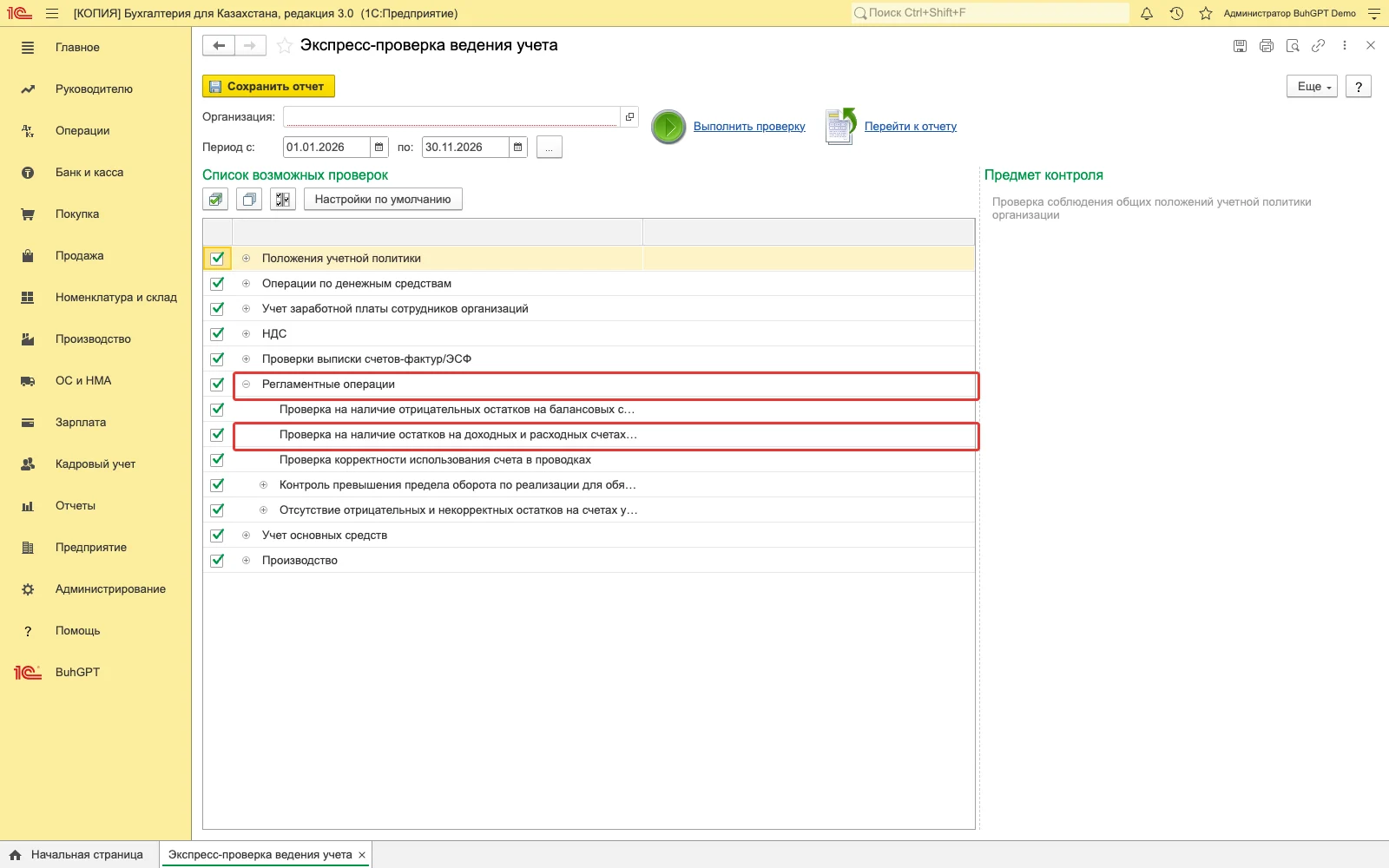
Two rules in the “Periodic Operations” section of release 3.0.75.1 are important at year-end:
| Rule | What an Error Means |
|---|---|
| Check for Balances in Revenue and Expense Accounts After Year-End Balance Closing | Revenue or expense accounts still have balances after year-end balance closing |
| Check for Negative Balances in Balance Sheet Accounts | A balance sheet account has a negative balance at the end of the period |
The year-end balance closing rule selects “Month-End Closing” documents that include the year-end balance closing operation and checks balances as of the closing date. The report displays a message if it finds no such documents in the period. If balances remain, the rule recommends reposting the “Month-End Closing” documents that include the year-end balance closing operation. This usually means December documents were backdated.
Step 4. Reconcile Using Reports
Important: Supplement the express check with the standard reports in the “Financial Accounting” group under Reports → Standard Reports:
- Trial Balance as of 31.12.2026: the accounts in sections 6 and 7 and account 5710 have zero balances
- Account Analysis for 5710: the balance is closed to account 5610
- Account Ledger for 7710: the balance as of 31.12.2026 is zero
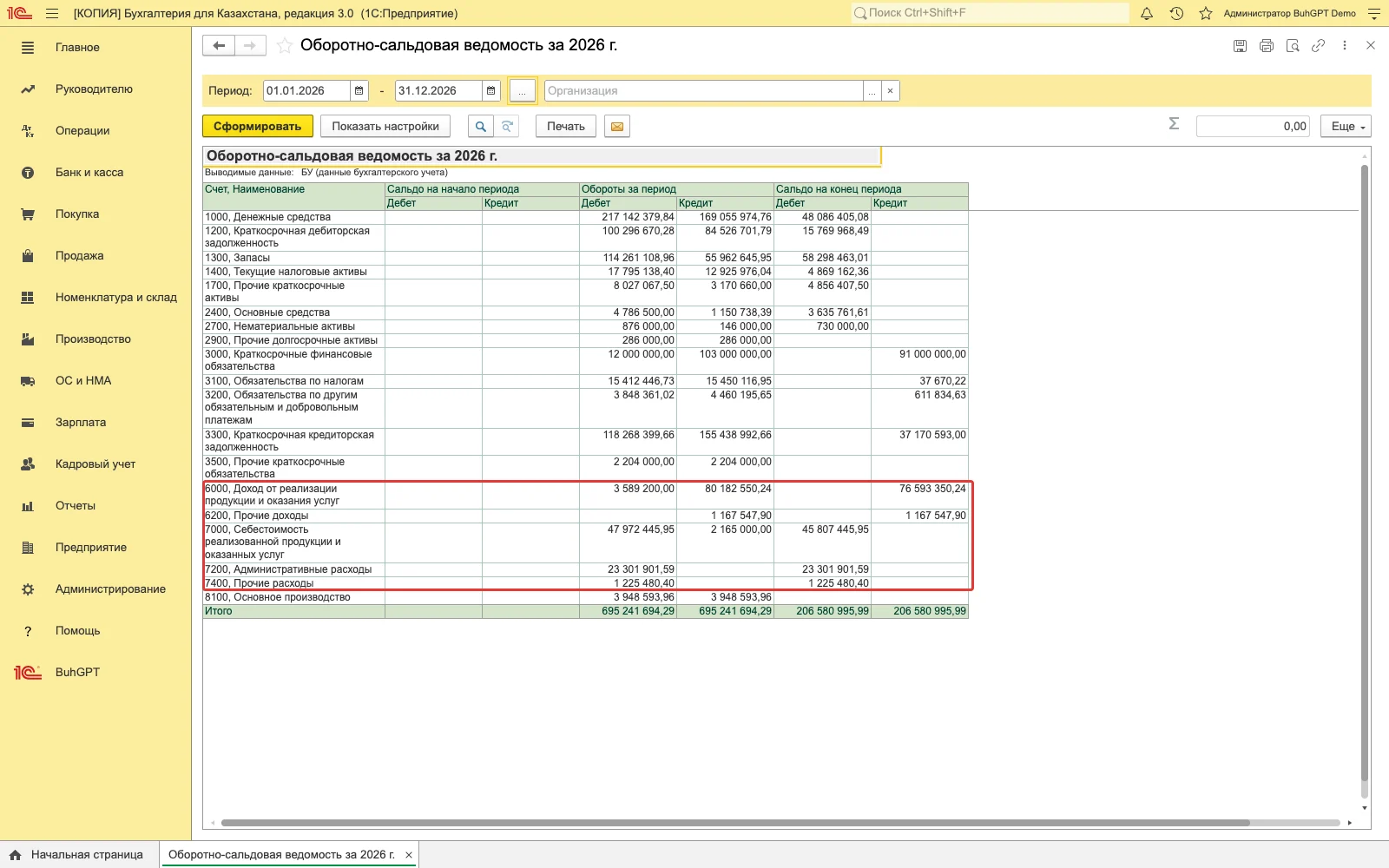
Once the reports show no discrepancies, set the data lock date to 31.12.2026 under Operations → Tools → Data Lock Dates. This prevents accidental changes to the year you have checked.
Before Filing Form 300.00
After making corrections, rerun the express check for the same period and compare the results with the initial report. Make sure the discrepancy you corrected has not been flagged by another rule.
If the message persists, save the check message, the period, the document and the entries it generated. These details can help you determine whether the message stems from an accounting error or from the rule’s settings. Leave the rule enabled until you have identified the cause.
Frequently Asked Questions
Where is the Express Accounting Check in 1C? — In “Operations,” go to the “Periodic Operations” group and select “Express Accounting Check.”
Do I need to change any VAT settings after installing 3.0.75.1? — No changes are needed for the express check. The four revised rules change how documents are matched when adjustments are involved. The check only generates a report.
Why did new messages appear after the update? — Four rules now account for the adjustment mechanism. Compare the message with the documents and registers before treating it as a new error.
What should I check if there is a discrepancy in account 1421 or 3131? — Check the account movements, VAT register entries, documents listed in the detailed report, posting dates and adjustments. The most common causes are a “Transaction” document with no register entries or a manual change to journal entries.
What period should I check before closing the year? — Before closing December, run the check for all sections from 01.01.2026 to 31.12.2026. After closing, run the “Periodic Operations” checks for December 2026.
The year-end balance closing rule says no documents were found. Is this an error? — The selected period has no “Month-End Closing” document that includes the year-end balance closing operation. Check that the period includes December and that December has been closed.
Can I disable a rule that flags a discrepancy? — Identify the cause first. Disabling the rule without reviewing the documents will leave any accounting error undetected.
Sources
- “1C:Accounting for Kazakhstan” 3.0.75.1 release notes, “Express Accounting Check” section
- “1C:Accounting for Kazakhstan” 3.0.75.1 help and rule set for the “Express Accounting Check” tool
- Order No. 185 of the Minister of Finance of the Republic of Kazakhstan dated 23.05.2007 — Standard Chart of Accounts in force in 2026
- Order No. 533 of the Minister of Finance of the Republic of Kazakhstan dated 06.08.2026 — revised Standard Chart of Accounts effective from 01.01.2027
- Closing 2026 and Opening 2027 — the main BuhGPT article