Once December 2026 has been closed and checked, set the data change lock date in 1C to 31.12.2026. Once the lock is in place, you cannot save, post, or delete documents dated 31.12.2026 or earlier, or move documents into the closed period. In 1C:Accounting for Kazakhstan 3.0.75.1, this takes two steps. Enable the checkbox under Administration, then set the date under Operations.
At a glance
- To enable the feature, go to Administration → User and Access Rights Settings and select the “Change Lock Dates” checkbox
- To set the date, go to Operations → Tools → Data Change Lock Dates and enter 31.12.2026
- You can set the date for all users, for an individual user or group, and by organization
- The lock applies to users with full access rights only if you select “Apply Lock Date to Users with Full Access Rights”
- Set the lock date after closing December, closing the year-end accounts, and checking the reports
The full year-end closing sequence is covered in the main article, “Closing 2026 and Opening 2027”. This article covers the final step of locking 2026 against accidental edits.
When to set the lock date
The lock date freezes the data already used to generate reports. If you set it too early, you will have to lift the lock each time you make a correction.
Important: Before setting the date to 31.12.2026, check that you have completed everything on the list below.
- Closed all months of 2026 in sequence under Operations → Period-End Operations → Month-End Closing
- Calculated corporate income tax (CIT) and closed the year-end accounts in December. Close income and expense accounts to account 5710 “Total Profit (Total Loss),” then close 5710 to account 5610 “Retained Earnings (Accumulated Loss) for the Reporting Year”
- Reviewed the trial balance and the results of the quick accounting check under Operations → Period-End Operations → Quick Accounting Check
- Deleted 2026 objects marked for deletion. Once the lock is in place, you will be unable to delete them
The account numbers follow the Standard Chart of Accounts (Order No. 185) in effect in 2026. The new chart under Order No. 533 applies from 01.01.2027 and has no effect on the 2026 close.
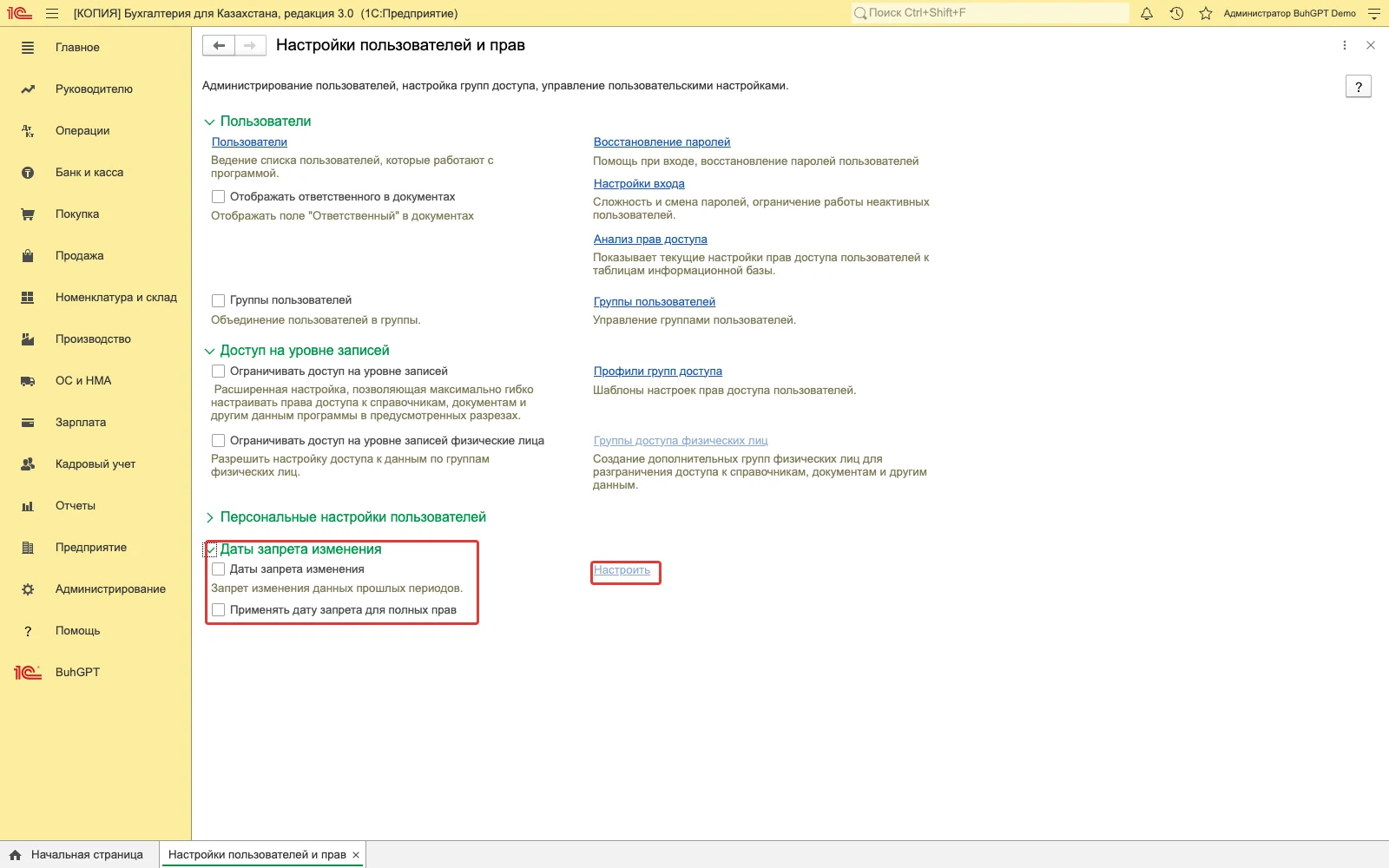
Step 1. Enable change lock dates
The checkbox enables the feature for the entire database. If the checkbox is cleared, the form for setting dates reports that lock dates are disabled in the application settings.
- Open Administration → User and Access Rights Settings.
- In the “Change Lock Dates” group, select the “Change Lock Dates” checkbox. Its tooltip reads “Prevent changes to data from prior periods.”
- Decide whether to select “Apply Lock Date to Users with Full Access Rights.” If the checkbox is cleared, users with full access rights can make changes in the closed period.
- Click “Configure” to open the “Data Change Lock Dates” form.
Important: In release 3.0.75.1, the check in the “ДатыЗапретаИзмененияБК” module lets users with full access rights bypass the lock if the “Apply Lock Date to Users with Full Access Rights” constant is disabled.
- If accountants use an administrator account, the lock will have no effect on them.
- Select “Apply Lock Date to Users with Full Access Rights” or give accountants their own accounts with limited access rights.
Step 2. Set the date to 31.12.2026
You can also open the same form from Operations. This is convenient when the checkbox is already selected.
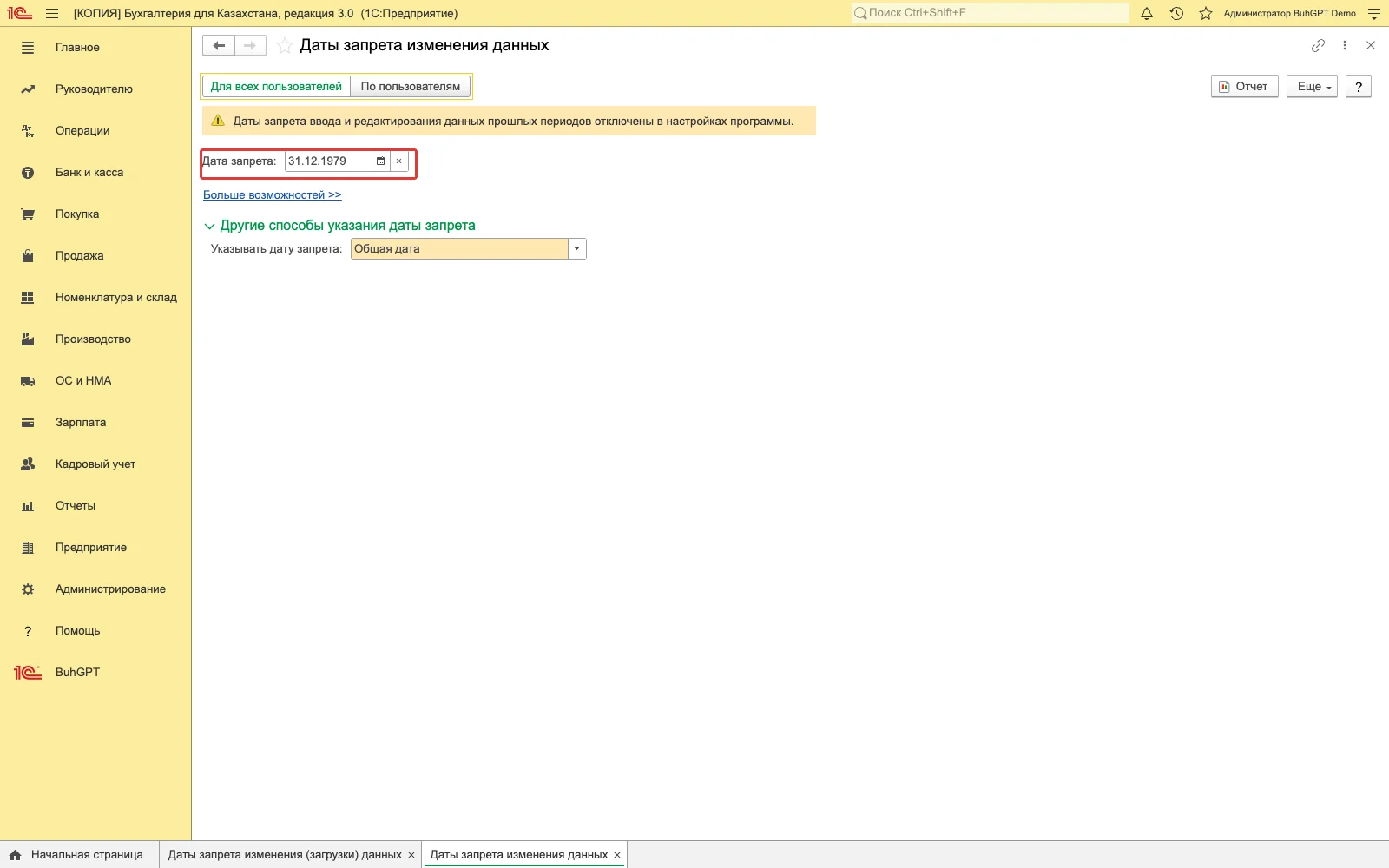
- Open Operations → Tools → Data Change Lock Dates.
- At the top, select “For All Users.”
- Select “Lock Date:” and enter 31.12.2026.
- Click “Report” (“Show Lock Date Report”) to check the result.
Different dates for different users
If only the chief accountant still needs to make changes in December, use the “By User” option.
- In the form, select “By User.”
- The list already contains a “<For All Users>” row. Select it and set the date to 31.12.2026.
- Click “Select” and add the chief accountant.
- Select the chief accountant’s row and set an earlier date, such as 30.11.2026.
The application checks for a date in this order. It starts with the individual user, then checks the user’s group, then checks the date for all users. The date in the user’s row therefore takes precedence over the default date.
Different dates for different organizations
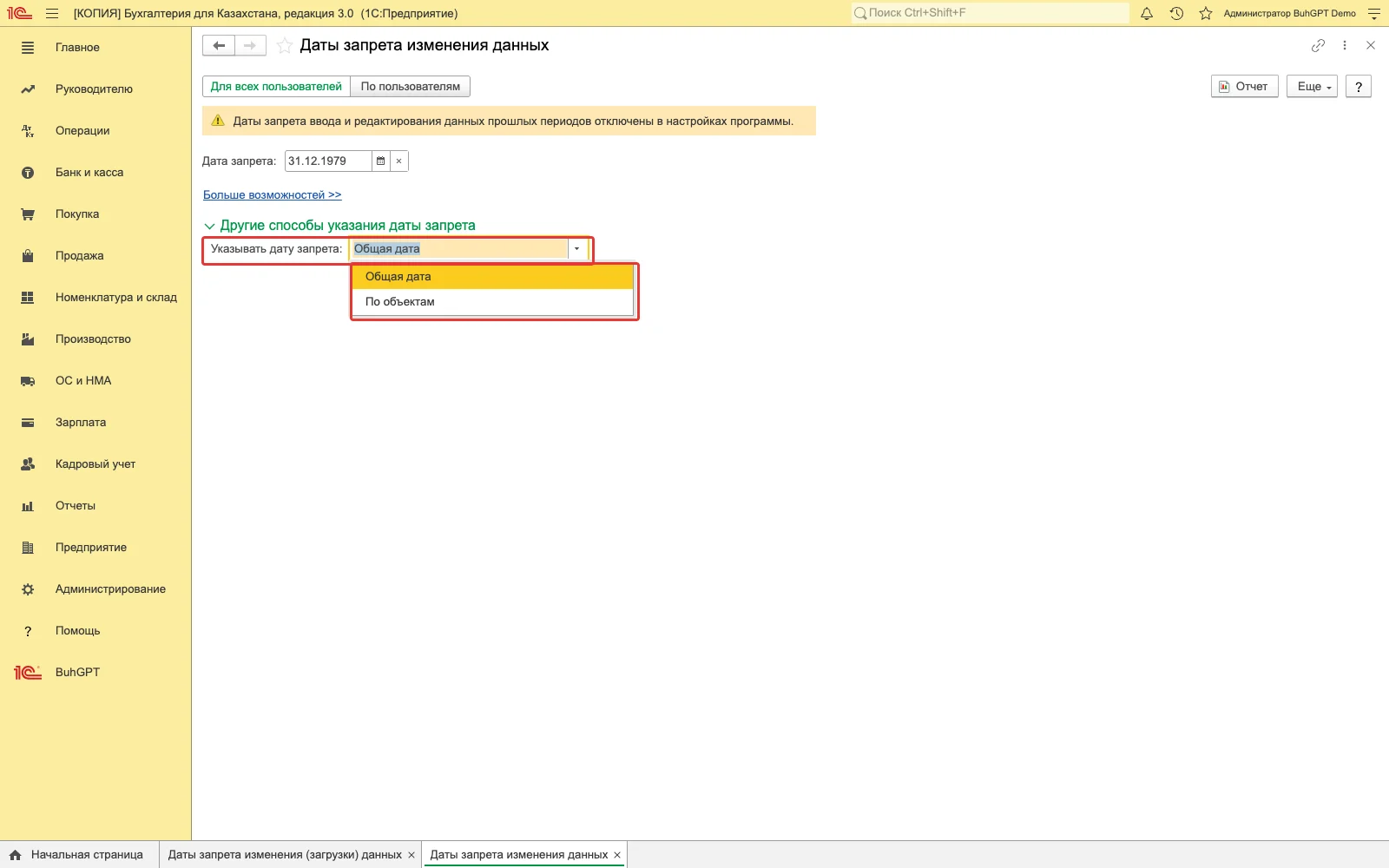
If the database contains multiple organizations, you can set a lock date for each one. In 1C:Accounting for Kazakhstan 3.0.75.1, “Accounting” is the sole lock date section, and its objects are organizations. The available options are therefore “Common Date” and “By Object,” with no “By Section” option.
- Expand the “Other Ways to Set the Lock Date” group.
- In the “Set Lock Date” field, choose “By Object.”
- Leave the date for all organizations in the “<Common Date for All Sections>” row.
- Use “Select” to add an organization and set its own date.
Which date applies to whom? A configuration example
Example: An accountant, a cashier, a chief accountant, and an administrator use the database of a limited liability partnership (LLP). December was closed on 20.01.2027, and the chief accountant is still checking the December reconciliation statements.
| User | Lock date | What they can do |
|---|---|---|
| For All Users | 31.12.2026 | Work only with dates from 01.01.2027 onward |
| Chief accountant | 30.11.2026 | Edit December 2026 data |
| Administrator | Does not apply | Edit any data while the full-access checkbox is cleared |
- The cashier tries to edit a cash receipt voucher for 150 000 tenge dated 28.12.2026. The application blocks the save.
- The accountant changes an invoice date from 05.01.2027 to 31.12.2026. The application blocks the save because documents cannot be moved into the closed period.
- The chief accountant corrects a “Settlement Reconciliation Statement” dated 28.12.2026. The application allows the save because the chief accountant’s lock date is 30.11.2026.
Result: All of 2026 is locked, with December still open for the chief accountant and all periods still open for the administrator.
When the chief accountant finishes, change their lock date to 31.12.2026 and select the full-access checkbox.
The “End of Last Year” relative date
You can select “End of Last Year” via the “More Options >>” link in place of 31.12.2026. This date rolls forward automatically. In 2026 it is 31.12.2025, and from 01.01.2027 it is 31.12.2026.
You can select “Takes effect after a delay of … days” for this date. In 3.0.75.1, the maximum delay for “End of Last Year” is 90 days.
Example: “End of Last Year” with a 90-day delay.
- Through 31.12.2026 inclusive, the lock covers dates through 31.12.2025.
- The delay is calculated from 31.12.2026. January has 31 days + February has 28 days + March has 31 days = 90 days.
- Through 31.03.2027 inclusive, 2026 remains open and the lock through 31.12.2025 stays in effect.
- From 01.04.2027, the lock covers dates through 31.12.2026.
Result: 2026 will lock automatically on 01.04.2027.
Important: If you set “End of Last Year” in November or December 2026, the application will lock only 2025.
- To lock 2026 as soon as you have checked it, set the date explicitly to 31.12.2026.
How to correct an error in a closed period
If you find an error in 2026 after setting the lock, follow these steps.
- Open Operations → Tools → Data Change Lock Dates.
- Change the date to the end of the month before the error. For example, use 30.11.2026 if the error is in December.
- Correct and post the document.
- Close December again under Operations → Period-End Operations → Month-End Closing, including the CIT calculation and the year-end account closing entries.
- Check the trial balance and restore the lock date to 31.12.2026.
If you try to edit a document in a closed period, 1C displays the message “Changes to data dated 31.12.2026 or earlier are prohibited.” The message ends by identifying the source of the lock, either “(a common lock date is set)” or an object such as an organization.
Important: The lock date also applies to batch reposting.
- The “Batch Repost Documents” utility (Administration → Maintenance, under “Data Adjustment”) cannot repost documents dated through 31.12.2026 until the lock date is lifted.
- Users with full access rights can still repost if “Apply Lock Date to Users with Full Access Rights” is cleared.
What the data import lock date controls
The application also has data import lock dates, which apply to synchronization between databases.
- The data change lock date restricts users of the current database.
- The data import lock date prevents data exchange from writing to a closed period. The application skips the affected data and records details in the event log.
- To configure the import lock date, go to Administration → Data Synchronization and use the checkbox and “Configure” link in the “Import Lock Dates” group. The group is available when the “Data Synchronization” checkbox is selected.
If the database receives documents from another application, set both lock dates to 31.12.2026. Imports through data exchange bypass the data change lock check, so without an import lock date, data exchange will write data to 2026.
Frequently asked questions
Why does the lock date have no effect on the administrator? — In 3.0.75.1, users with full access rights bypass the check if “Apply Lock Date to Users with Full Access Rights” is cleared under Administration → User and Access Rights Settings. Select the checkbox.
Can I create a document dated 31.12.2026 in January 2027? — No. 1C also checks the new document’s date and prevents it from being saved in the closed period.
Does the lock date of 31.12.2026 affect work in January 2027? — No. Documents dated 01.01.2027 or later can be saved and posted as usual.
Which takes precedence, the user’s date or the common date? — The user’s date. The application checks for a date for the individual user first, then for the user’s group, then for all users.
Can I lock 2026 for just one organization? — Yes. In “Other Ways to Set the Lock Date,” select “By Object” and set a date for that organization.
Why can’t I remove 2026 documents marked for deletion? — Once the lock is in place, objects in the closed period cannot be deleted. Temporarily move the lock date back, delete them, and restore 31.12.2026.
Where can I see all the dates that have been set? — Click “Report” in the “Data Change Lock Dates” form. The report shows each user’s effective lock date after applying the precedence rules.
Sources
- 1C:Accounting for Kazakhstan 3.0.75.1 configuration, including the “Use Change Lock Dates” and “Apply Lock Date to Users with Full Access Rights” constants, the “Change Lock Dates” information register, the “ДатыЗапретаИзмененияБК” common module, and the help for the “Data Change Lock Dates” form
- Standard Chart of Accounts (Order No. 185 of the Minister of Finance of the Republic of Kazakhstan)
- Revised Standard Chart of Accounts effective 01.01.2027 (Order No. 533)
- Closing 2026 and Opening 2027 — the main BuhGPT article